
How to Undo a Bulk Price Change on Shopify
Learn how to recover from an accidental Shopify bulk price change using CSV backups and automated rollback tools to protect your store's margins.

- NV Trends
- 13 min read

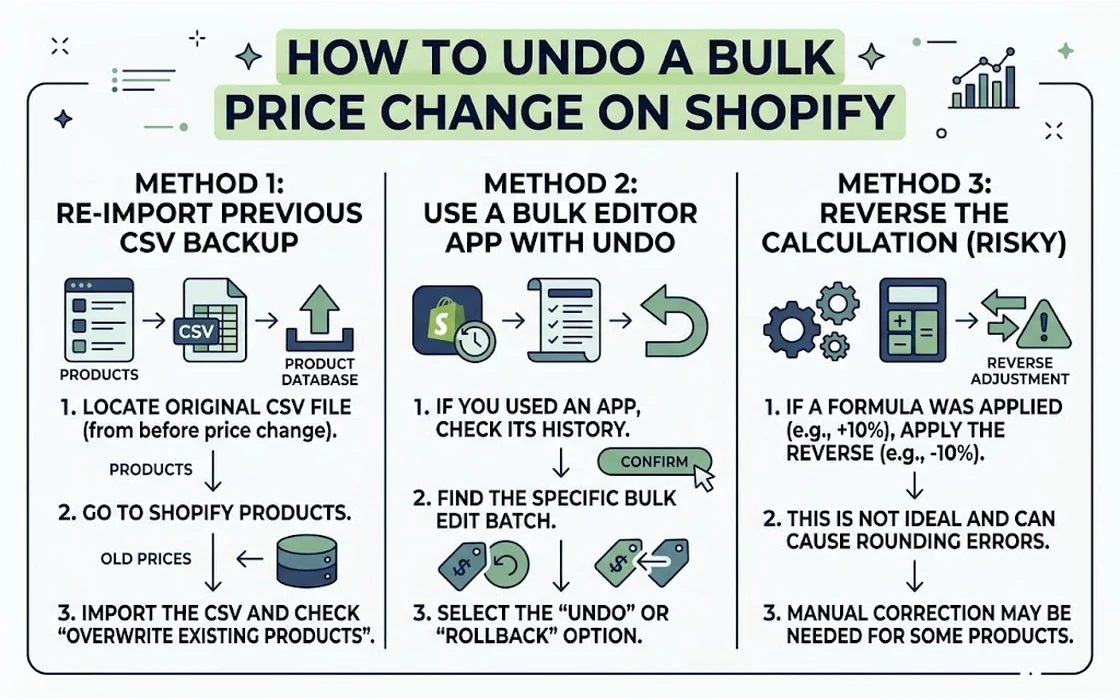
Shopify does not have a native “Undo” button, revision history, or rollback toggle for bulk price changes. When a bulk price edit is confirmed—whether executed inside the native Bulk Editor, applied via a third-party application, or imported through a product CSV file—the new price values immediately overwrite the existing database records across all variants. For an online store managing hundreds or thousands of SKUs, an accidental decimal slip, an inverted discount formula, or an unintended sitewide markdown can wipe out profit margins in seconds.
The immediate panic of watching a Rs. 2,999 apparel item drop to Rs. 299 or seeing entire product lines priced below cost during high-traffic sales events is one of the most severe operational headaches in ecommerce. Because Shopify synchronizes price adjustments across storefronts, checkout engines, and marketing feeds (including Google Shopping and Meta catalogs), pricing errors propagate publicly almost immediately.
While Shopify lacks a single-click native rollback mechanism, recovering your original catalog pricing is entirely possible. Depending on your current operational posture, you can reverse the mistake using a sanitized CSV restoration, retrieve cached price data from external channel feeds, or implement automated snapshot architecture to ensure your store never faces this emergency again.
Key takeaways
- Shopify lacks native undo functionality: Price changes directly update the core
ProductVariantdatabase entity, leaving no built-in version history or rollback switch. - CSV restores require strict column sanitization: Re-uploading an entire unedited backup file will overwrite active inventory levels that changed during the incident; only variant identifiers and price columns should be imported.
- Secondary feeds offer emergency recovery: If you made a bulk price change without an export, historical pricing can often be extracted from Google Merchant Center feeds, order transaction histories, or ERP exports.
- Automated snapshots eliminate spreadsheet risks: Modern bulk scheduling applications capture pre-change price snapshots automatically, enabling instant rollbacks without manual CSV surgery.
The Technical Reality: Why Shopify Cannot Simply “Undo” Price Edits
To resolve a bulk price blunder, you must first understand how Shopify treats product data. In content management systems, changes to pages or blog posts are often stored as distinct revisions, allowing editors to step back through previous drafts. In contrast, Shopify’s commerce architecture treats product variant pricing as a real-time transactional state.
According to technical documentation on the Shopify Help Center, product attributes such as price and compare_at_price are direct properties of the ProductVariant resource. When you perform an edit inside the Shopify admin, the platform executes a direct database update. There is no background log storing an array of previous prices that the admin interface can step back through on command.
Furthermore, price updates trigger automated platform events:
- Cache Invalidation: Collection pages and search indexes dump cached prices to display updated figures to buyers.
- Channel Webhooks: Integrated sales channels (such as Instagram Shop, Google Merchant Center, and POS terminals) receive webhook notifications of price changes, often triggering automated ad updates.
- Draft and Abandoned Carts: While checkout sessions lock prices temporarily, new checkouts instantly inherit the overwritten price.
Because these operations happen asynchronously at scale, Shopify does not provide a global “revert” function. Once a write operation completes, the old values are effectively erased from your store’s active database.
Emergency Triage: What to Do in the First 10 Minutes
When you realize a pricing mistake is live, frantic manual editing usually compounds the problem. A structured triage plan prevents further financial damage while you prepare a full restoration.
Accidental Bulk Price Change Live
               │
               ▼
   Are wrong prices below cost?
       ├── YES ──► Pause online store password / disable checkouts
       └── NO  ──► Proceed with live catalog triage
               │
               ▼
   Do you have a pre-change CSV export?
       ├── YES ──► Sanitize CSV (keep only Handle + Price) ──► Re-import
       └── NO  ──► Extract from Google Feed / Order History ──► Build CSV
               │
               ▼
   Audit orders placed during the price error window
1. Assess Margin Exposure and Traffic
If the price error has reduced items to absurd figures (such as Rs. 0 or Rs. 9 instead of Rs. 999), your immediate priority is stopping order completion. If your store is receiving heavy concurrent traffic, consider enabling the Online Store password page temporarily under Online Store > Preferences. While taking the storefront offline for 15 minutes is painful, it is far less costly than processing hundreds of orders that lose Rs. 500 to Rs. 2,000 per shipment.
If the error is minor (such as a 10% discount applied instead of 5%), keep the storefront active and move directly to CSV restoration.
2. Handle Orders Placed at Incorrect Prices
In the Indian market, canceling orders outright can lead to severe customer friction, negative social sentiment, and payment gateway chargeback disputes. However, fulfilling orders priced severely below cost can be fatal for bootstrapped merchants.
Before issuing mass cancellations, audit the orders placed during the affected window. If an order can be partially fulfilled or renegotiated, you will need to adjust the order details. If you need to make changes to an active customer purchase without generating confusing duplicate transactions, review this detailed walkthrough on how to edit a Shopify order after it’s placed.
Step-by-Step: Reversing a Price Change Using Shopify CSV Files
The standard native method for recovering previous pricing is an import using a properly structured CSV file. The execution differs depending on whether you created a backup prior to the change.
Scenario A: You Have a Pre-Change Backup CSV
If you followed standard operational precautions and exported your catalog right before applying the bulk change, you have the exact historical prices. However, do not immediately upload this raw export file back into Shopify.
The Inventory Overwrite Trap
A raw Shopify product export includes columns for available inventory counts (Variant Inventory Qty). If 45 minutes have elapsed since your export, and your store has processed sales during that window, re-importing the raw CSV will overwrite your current inventory counts with the older snapshot. This creates phantom stock and leads to overselling.
How to Prepare a Sanitized Price-Only CSV:
- Open your exported CSV in Microsoft Excel, Google Sheets, or Apple Numbers.
- Delete every column except the following critical identifiers:
Handle(Required for Shopify to match the product)Title(Helpful for human reference)Option1 Name,Option1 Value(Required if products have variants)Option2 Name,Option2 Value(If applicable)Option3 Name,Option3 Value(If applicable)Variant SKU(Helpful fallback identifier)Variant Price(The correct historical selling price)Variant Compare At Price(The original strike-through/MRP price)
- Ensure no inventory, fulfillment, weight, or tag columns remain in the file.
- Export or save the cleaned sheet strictly as a CSV (Comma delimited) (*.csv) file using UTF-8 encoding.
- In your Shopify admin, go to Products.
- Click Import at the top right.
- Select your sanitized CSV file.
- Check the box labeled “Overwrite any current products that have the same handle.” If you omit this step, Shopify will skip existing products instead of updating their prices.
- Click Upload and preview, verify the sample records, and click Import products.
Sanitized CSV Layout Example:
┌─────────────────┬──────────────────────┬───────────────┬───────────────┐
│ Handle          │ Option1 Value        │ Variant Price │ Variant MRP   │
├─────────────────┼──────────────────────┼───────────────┼───────────────┤
│ silk-saree-red  │ Free Size            │ 2499.00       │ 4999.00       │
│ cotton-kurta-bl │ M                    │ 899.00        │ 1799.00       │
│ cotton-kurta-bl │ L                    │ 899.00        │ 1799.00       │
└─────────────────┴──────────────────────┴───────────────┴───────────────┘
Scenario B: You Do Not Have a Backup CSV
If you applied a bulk price change without an export, there is no native recovery file stored on your server. You must extract historical pricing from secondary business systems.
1. Extracting Feeds from Google Merchant Center
If your Shopify store syncs with Google Shopping, Google Merchant Center periodically fetches and stores your catalog feed.
- Log into your Google Merchant Center dashboard.
- Navigate to Products > Feeds.
- Look for your primary product data source and download the last processed feed file or inspect the historical product cache.
- This file contains variant IDs or SKUs alongside their pre-change prices.
2. Reconstructing Prices from Recent Order History
If only a specific collection was affected and you have no feed backups, you can reconstruct base prices using your recent transaction data:
- In Shopify Admin, navigate to Orders > Export.
- Export orders from the preceding 14 to 30 days.
- In a spreadsheet, use the
Lineitem skuandLineitem pricecolumns. - Using a spreadsheet formula like
=XLOOKUP(A2, Orders!SKU_Range, Orders!Price_Range)or a Pivot Table, map the most frequently billed price for each SKU back into a clean product import template.
3. Reviewing Third-Party App Logs
If the price change was initiated by an automated discounts app, check the application’s internal dashboard. As detailed across threads on the Shopify Community, many third-party pricing apps retain internal execution logs that allow users to download the exact dataset used during the batch update.
Comparison: Price Recovery Methods Across Operational Dimensions
Choosing the right recovery method depends on catalog size, technical preparation, and how much time has passed since the error.
| Recovery Method | Restoration Speed | Secondary Data Risk | Catalog Scale Fit | Prerequisite Data Required |
|---|---|---|---|---|
| Sanitized Backup CSV Import | 5–15 minutes | Low (if non-price columns are stripped) | 1 to 50,000+ SKUs | Pre-change catalog export file |
| Raw (Unsanitized) CSV Import | 5–10 minutes | Critical (overwrites live inventory levels) | Not recommended | Pre-change catalog export file |
| Manual Shopify Bulk Editor | 1–3 hours | Moderate (human data-entry errors) | <50 SKUs only | Human memory / offline price lists |
| Google Merchant Feed Scraping | 30–60 minutes | Low to Moderate | 100 to 10,000 SKUs | Active, synced Google Shopping feed |
| Automated Snapshot & Rollback App | <2 minutes | Zero (isolated price rollback) | Unlimited SKUs | Dedicated pricing app with snapshot feature |
How to Never Need an Emergency Price Undo Again
Relying on manual spreadsheets during high-pressure sales events inevitably leads to mistakes. Modern ecommerce workflows require defensive infrastructure that isolates pricing updates from human error.
1. Adopt the “Two-Column Rule” for Spreadsheets
Never edit a raw, 50-column Shopify export sheet directly. If you must adjust prices via spreadsheet:
- Create a master sheet containing only
Handle,Variant SKU, and the revisedVariant Price. - Keep the master backup untouched in a separate directory labeled with an immutable timestamp (e.g.,
Catalog_Backup_2026_10_02_0900IST.csv). - Only import files that contain the absolute minimum number of columns required to effect the change.
2. Move Away from the Native Bulk Editor for Large Catalogs
Shopify’s built-in Bulk Editor is functional for changing prices on 10 variants, but it is dangerous for extensive product catalogs. Inadvertent mouse-wheel scrolling, accidental trackpad gestures, or unaligned copy-paste keystrokes can modify values in adjacent cells without triggering an explicit confirmation prompt.
3. Deploy Automated Price Scheduling and Snapshots
Instead of manually tweaking product pricing at midnight before a major sale (such as Diwali, Republic Day, or seasonal clearance events), merchants should rely on automated tools with built-in snapshot capabilities.
A dedicated solution like NV Bulk Price & Tag Scheduler provides an operational safety net. Rather than permanently overwriting prices in raw data tables, it records a complete snapshot of your catalog’s existing prices before applying any scheduled discount. When the sale window ends—or if a merchant spots an incorrect promotional value—the system can reverse the batch operation and restore previous prices automatically, eliminating manual CSV scrambles entirely.
Safe Scheduling Workflow:
┌───────────────────────┐
│ Schedule Price Change │
└──────────┬────────────┘
           ▼
┌───────────────────────┐
│ System Auto-Captures  │ ──► Preserves exact pre-sale baseline
│ Price Snapshot        │
└──────────┬────────────┘
           ▼
┌───────────────────────┐
│ Promotional Prices Go │
│ Live on Schedule      │
└──────────┬────────────┘
           ▼
┌───────────────────────┐
│ Sale Ends or Error?   │ ──► Single-click automatic rollback
│ Revert to Snapshot    │
└───────────────────────┘
4. Implement Automated Order Safeguards
When pricing errors slip through to the live storefront, automated monitoring can catch anomalous orders before they hit the warehouse floor. Highly discounted products frequently trigger suspicious purchasing spikes, bot orders, or unusually large cart values. Integrating rules via Order Validation & Automation allows merchants to automatically flag, hold, or review orders exceeding specific quantity or discount thresholds, preventing accidental clearance of inventory while staff works on catalog recovery.
Legal and Practical Considerations for Indian Merchants
In the Indian ecommerce ecosystem, pricing mistakes carry unique operational and regulatory implications.
Legal Metrology and MRP Regulations
According to the Legal Metrology (Packaged Commodities) Rules enforced by the Ministry of Consumer Affairs, ecommerce platforms operating in India are required to clearly display the Maximum Retail Price (MRP) alongside any discounted selling price. When running bulk price modifications:
- Ensure that your bulk formula does not inadvertently adjust the
compare_at_pricebelow theprice. In Shopify, if the compare-at price is lower than the standard price, strike-through styling breaks, and some themes default to showing the higher figure as the payable total. - The declared selling price must never exceed the declared MRP on physical product packaging.
Managing Cash on Delivery (COD) Risk During Pricing Blunders
In India, Cash on Delivery remains a favored payment method. If a pricing error exposes your store to bargain hunters or deal channels (such as Telegram discount groups), COD orders will surge rapidly.
- Unlike prepaid transactions where payment confirmation is instantaneous, COD orders allow users to place high-volume orders without immediate financial commitment.
- If your fulfillment team processes these orders before the pricing error is discovered, you face astronomical Return-to-Origin (RTO) courier costs when attempting to reclaim or cancel packages in transit.
- Restricting COD temporarily during wide-scale promotional changes minimizes this operational exposure.
FAQ
Can Shopify Support rollback my store’s product prices if I make a bulk editing mistake?
No, Shopify Support cannot restore or rollback overwritten product prices for you. Because variant prices are live operational records in your store’s database, Shopify does not maintain accessible historical point-in-time catalog backups for individual accounts. The merchant is solely responsible for restoring data using their own CSV files or third-party backup tools.
Will re-uploading an old product CSV overwrite the inventory counts of items sold today?
Yes, it will—unless you sanitize the file first. Standard product export files include the Variant Inventory Qty column, which reflects stock levels at the exact moment of export. If you re-import that file after several hours of trading, Shopify will overwrite current stock with the older values. To avoid this, delete all inventory and fulfillment columns from your CSV before importing.
How long does a bulk CSV price update take to reflect across online storefronts?
For catalogs under 1,000 variants, Shopify typically processes a price-only CSV within 2 to 5 minutes. However, storefront cache layers, content delivery networks (CDNs), and connected external channels like Google Shopping or Meta Commerce may take anywhere from 15 minutes to several hours to display the updated prices across all public endpoints.
Is it legal to cancel an order in India if an item was mispriced by mistake?
Under Indian contract law, an online product listing generally constitutes an “invitation to offer,” and the merchant reserves the right to reject an offer before acceptance or dispatch, particularly in cases of manifest clerical or technological error (unilateral mistake). However, to prevent consumer forum complaints, merchants must promptly communicate the error to the buyer, initiate immediate refunds for prepaid purchases, and maintain consistent terms of service on their website.
Related reading
- NV Bulk Price & Tag Scheduler - bulk pricing and scheduled sales for Shopify
- NV WhatsApp Chat - WhatsApp chat button for Shopify
- Order Validation & Automation - automatic order screening for Shopify
Conclusion
The absence of a native “Undo” button in Shopify makes bulk price updates a high-stakes operational task. When an accidental price change occurs, panic is your worst enemy. Reversing the damage requires rapid triage: pausing exposure if losses are severe, avoiding raw CSV re-imports that compromise inventory counts, and methodically uploading a sanitized spreadsheet containing only handle and price columns.
Once the immediate crisis is resolved, operational changes are essential. Relying on manual spreadsheets or native bulk editing for complex catalog promotions is inherently risky. By implementing automated scheduling solutions that capture baseline snapshots before every price change, establishing rigorous CSV sanitation protocols, and setting order validation rules, you can execute dynamic pricing strategies with complete operational confidence.
- Tags:
- Shopify
- Bulk Pricing
- Ecommerce Operations
- Shopify Store Management
- Price Rollback
- Inventory Management