
Increase Shopify Prices by Percentage: 3 Methods
Learn how to increase your Shopify prices by a percentage using the native editor, CSV formulas, or apps to protect margins without catalog errors.

- NV Trends
- 15 min read
Shopify does not provide a native one-click setting to increase base store product prices across an entire catalog by a flat percentage. When inflation, supplier cost increases, currency fluctuations, or revised tax obligations require an upward price revision, store operators must choose between three distinct operational workflows: manually updating fields inside Shopify’s native bulk editor, exporting product data to compute new rates in a spreadsheet via CSV formulas, or automating the adjustment using a specialized Shopify application.
Each method addresses a different operational scale and tolerance for catalog risk. While manual entry in the Shopify admin works passably for a boutique store managing twenty simple items, attempting to calculate and re-key a 10% or 15% increase across hundreds of multi-variant products invites human calculation errors and severe operational downtime. Conversely, editing raw spreadsheet exports introduces technical hazards like truncated barcode data, stripped leading zeros on SKUs, and inventory overwrites.
Selecting the right approach requires understanding the exact technical limits of the Shopify admin interface, the mathematical syntax needed for spreadsheet transformations, and the circumstances under which automated tools provide essential safeguards like automated rollbacks and rule-based scheduling.
Key takeaways
- The native Shopify admin bulk editor cannot apply percentage calculations and caps pagination at 50 products per screen, making it unsuitable for large-scale percentage hikes.
- Shopify Markets allows percentage-based price adjustments, but those rules apply exclusively to localized secondary markets and cannot alter the base domestic catalog price.
- The manual CSV export-import route is completely free and supports complex formulas, but it exposes the store to character encoding errors, SKU truncation, and accidental inventory synchronization overrides.
- Automated bulk pricing apps eliminate spreadsheet hazards, offering one-click rollbacks, scheduled price adjustments, and psychological charm-price rounding rules (such as ending in Rs. 49 or Rs. 99).
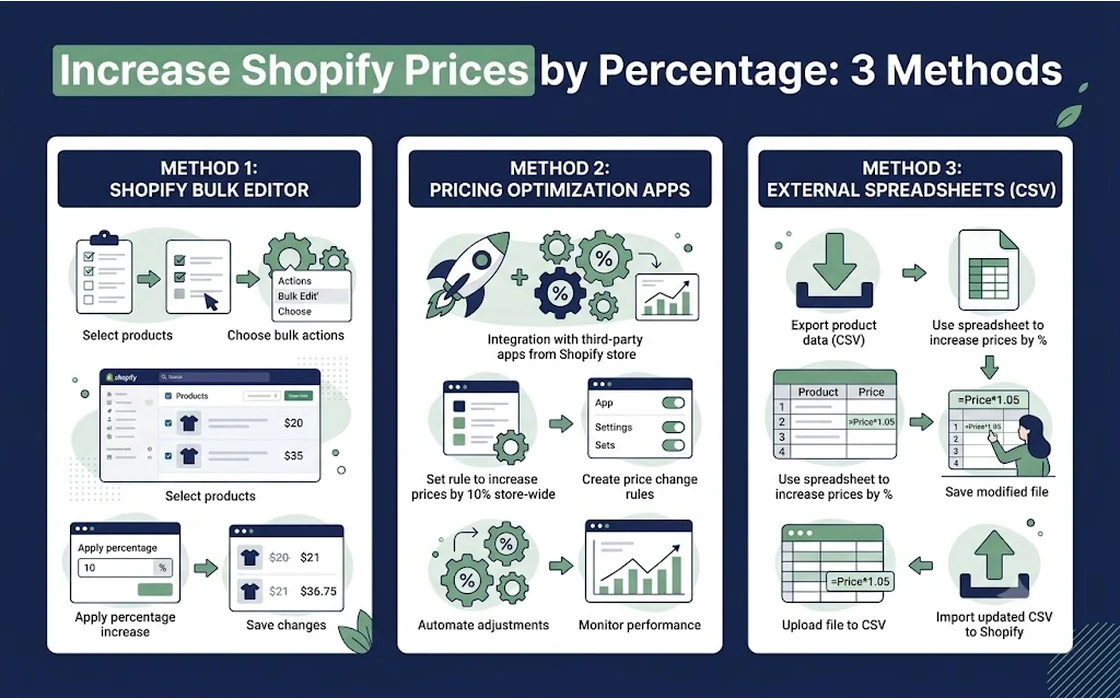
The Native Bulk Editor: Why Percentage Adjustments Are Impossible Directly
Merchants often head first to the Shopify Admin under Products, select all items, and open the bulk editor, expecting a formula bar similar to Microsoft Excel or Google Sheets. However, the native bulk editor is fundamentally an inline data-entry table, not a calculation engine.
Shopify Admin > Products > Select Products > Bulk Edit
Inside this interface, you can edit fields like Price, Compare-at price, Cost per item, and Charge taxes. You can type a new price or click and drag a single static value downward to copy it across multiple rows. What you cannot do is enter a formula or a command such as Increase selected by 12%.
Furthermore, the native bulk editor suffers from strict pagination constraints:
- Fifty-item screen limit: The bulk editor displays a maximum of 50 products or variants at a time. A merchant with 500 products (each having 3 variants, totaling 1,500 rows) would need to click through 30 distinct pages.
- No dynamic mathematical operators: Because the input fields only accept numeric or text values, every single percentage calculation must be computed externally on a desktop calculator and manually typed into each variant row.
- High risk of keystroke error: Manually keying values across hundreds of cells regularly produces typographical mistakes, such as entering Rs. 1,490 instead of Rs. 149, or missing a variant entirely.
The native bulk editor remains useful for quick, isolated price adjustments—such as revising five or ten specific SKUs. For an across-the-board percentage increase across a broad catalog, it is functionally unusable.
The Shopify Markets Misconception: Per-Market vs. Base Store Price
A frequent point of confusion among merchants is the pricing adjustment feature found inside Shopify Markets. Under Settings > Markets, merchants can select a specific geographic market (for example, the United Arab Emirates or the United States) and configure a global percentage price increase under the Products and pricing section.
According to the official Shopify Help Center documentation on Markets pricing, this feature allows store owners to apply a flat percentage price adjustment (such as +10% or -5%) across all products for customers browsing from that specific region.
However, this feature comes with a critical limitation: it does not alter the base store catalog price.
Base Price (Domestic / Primary Market) -> Locked
Secondary Market Price -> Base Price * (1 + Market Adjustment %)
If your primary store currency is Indian Rupees (INR) and your primary market is India, Shopify Markets does not permit you to apply a percentage markup to that primary market. The primary market price serves as the foundation upon which all other market adjustments are derived. Consequently, if your core supplier costs rise by 10% across the board and you need to increase your domestic retail prices, Shopify Markets cannot resolve the problem. You must physically update the base prices in the core product database.
Method 1: The CSV Formula Route (The Free, Manual Solution)
For merchants who do not wish to install a paid third-party application, the standard workaround is exporting the product catalog into a Comma-Separated Values (CSV) file, applying a mathematical formula in a spreadsheet application, and re-importing the modified file back into Shopify.
While this method is free and highly flexible, it requires meticulous execution to prevent corrupting catalog data.
Step 1: Exporting the Clean Catalog
Navigate to your Shopify Admin and proceed to Products.
- Click the Export button in the upper right corner.
- In the dialog box, select All products.
- Under the export format, select CSV for Excel, Numbers, or other spreadsheet programs.
- Click Export products. Shopify will generate the file and email the download link to your registered account email.
Safety Warning: Immediately create a duplicate copy of this exported CSV file and store it in a secure folder titled
Shopify_Price_Backup_[Date]. If your spreadsheet formatting introduces errors during re-import, this untouched backup is your only rapid recovery mechanism.
Step 2: Opening and Pruning the Spreadsheet
Open the downloaded file in Google Sheets or Microsoft Excel. A standard Shopify product export contains dozens of columns, including Handle, Title, Body (HTML), Vendor, Type, Tags, Option1 Name, Option1 Value, Variant SKU, Variant Grams, Variant Inventory Tracker, Variant Price, and Variant Compare At Price.
To execute a price increase safely:
- Locate the column labeled Variant Price (often Column N or O, depending on your Shopify schema).
- Locate the column labeled Variant Compare At Price (if you display strike-through discounts on your storefront).
- Do not modify or delete the
Handle,Title,Option1 Name,Option1 Value, orVariant SKUcolumns. Shopify uses theHandleand variant attributes as unique database keys to map updated values to the correct items.
Step 3: Applying the Percentage Formula
Insert a temporary empty column immediately to the right of Variant Price. For this example, assume Variant Price resides in Column N, and your new temporary column is Column O.
To increase all product prices by 10%, apply the following formula in row 2 of your temporary column:
=ROUND(N2 * 1.10, 2)
If your store operates in Indian Rupees (INR), decimal pricing is rarely used in consumer retail. To round your adjusted price to the nearest whole rupee, utilize the integer rounding formula:
=ROUND(N2 * 1.10, 0)
Handling Psychological “Charm” Pricing
Most retailers avoid arbitrary numbers such as Rs. 543 or Rs. 1,087. If you prefer your prices to end in standard retail psychological endings like Rs. 99 or Rs. 49, you can expand your spreadsheet formula.
To increase the price by 10% and round to the nearest ending of Rs. 99, use:
=ROUNDDOWN(N2 * 1.10, -2) + 99
Formula breakdown:
- If
N2is Rs. 1,200, a 10% increase yields Rs. 1,320. ROUNDDOWN(1320, -2)rounds down to the nearest hundred (Rs. 1,300).- Adding
99sets the final consumer price to Rs. 1,399.
Drag this formula down across all active product variant rows in your spreadsheet. If you maintain strike-through discounts, apply an identical 10% adjustment formula to the Variant Compare At Price column so that discount badges and percentage margins remain proportionate.
Step 4: Converting Formulas to Static Values
Shopify will fail to parse dynamic formulas during import; the CSV file must contain raw numeric strings.
- Highlight your newly calculated temporary column.
- Copy the column (
Ctrl + Con Windows orCmd + Con Mac). - Right-click on the original Variant Price column.
- Select Paste Special > Values Only.
- Delete the temporary calculation column you created in Step 3.
Verify that the values in the Variant Price column are now plain numbers (e.g., 1399, not =ROUNDDOWN(...)).
Step 5: Exporting as Clean UTF-8 CSV and Re-Importing
Save or download your spreadsheet specifically as a Comma Separated Values (.csv) file using UTF-8 encoding.
Return to the Shopify Admin:
- Navigate to Products.
- Click Import.
- Click Add file and select your modified CSV.
- Crucial Step: Check the box that reads “Overwrite any current products that have the same handle. Existing values will be used for any missing columns.” If you fail to check this box, Shopify will reject the file because products with those handles already exist.
- Click Upload and continue.
- Shopify will display a preview screen showing how the first product will be imported. Inspect the preview carefully to ensure the new price is mapped accurately.
- Click Import products.
According to the official Shopify Help Center import guide, background processing can take anywhere from two minutes to over an hour depending on whether your catalog contains 100 items or 20,000 variants.
The Inherent Hazards of the CSV Method
While the CSV route is free, it is prone to operational pitfalls that can disrupt live retail operations:
1. Truncation of Leading Zeros on Barcodes and SKUs
When standard versions of Microsoft Excel open a CSV file, the software automatically guesses data types. If you have SKUs or barcode numbers beginning with a zero (e.g., 00492811), Excel frequently interprets them as integers and strips the leading zeros (converting it to 492811). When imported, your barcode scanners, warehouse management integrations, and third-party fulfillment software may fail to recognize the items.
2. Live Inventory Desynchronization (The Race Condition)
If your exported CSV contains the columns Variant Inventory Qty and you re-import that file two hours later, Shopify will overwrite your inventory levels with the numbers recorded at the time of export. If customers purchased 15 units while you were editing prices in your spreadsheet, those 15 units will be re-added to your stock levels, creating phantom inventory and risking overselling.
How to mitigate: Delete the inventory quantity columns entirely from your CSV before re-importing, or ensure the import setting preserves inventory tracking where applicable.
3. Special Character and HTML Formatting Corruption
Product descriptions stored in the Body (HTML) column often contain non-standard quotation marks, em-dashes, or non-Latin script. If your spreadsheet editor does not strictly preserve UTF-8 encoding when saving, product descriptions can turn into garbled text strings (such as ’ instead of an apostrophe).
Method 2: Dedicated Shopify Apps for Bulk Percentage Updates
For catalogs with more than a few dozen items, or for stores running regular promotional campaigns, manual spreadsheet edits become an operational liability. Dedicated Shopify bulk pricing applications resolve this by executing price adjustments directly against the Shopify API.
A tool such as NV Bulk Price & Tag Scheduler operates natively within the store’s architecture, allowing operators to execute percentage price revisions without handling raw data files.
Select Segment (Collection, Vendor, Tag)
  -> Set Adjustment (+12%)
  -> Define Rounding Rule (Nearest Rs. 99)
  -> Schedule / Execute
  -> One-Click Rollback Available
Key Advantages of App-Based Updates
- Zero spreadsheet handling: Eliminates the danger of Excel stripping SKU zeros, corrupting HTML tags, or shifting column rows.
- Granular targeting: Rather than updating all products blindly, apps allow filtering by collection, product tag, vendor, or inventory tier.
- Automated rounding engines: Instead of complex nested spreadsheet formulas, apps allow you to choose psychological rounding presets (e.g., round to the nearest Rs. 10, Rs. 50, or Rs. 99).
- Scheduled execution and automated rollback: Store operators can schedule an inflationary price hike or a temporary festive flash sale to trigger precisely at midnight, with an automated reversal scheduled 48 hours later.
- Audit logs: Every price change is tracked, showing previous and updated prices per variant, simplifying accounting reconciliations.
Method Comparison: Native Editor vs. CSV Formula vs. Bulk App
To choose the optimal path for your store, evaluate the operational parameters of each method side by side:
| Evaluation Criterion | Native Bulk Editor | CSV Spreadsheet Formula | Dedicated Bulk Pricing App |
|---|---|---|---|
| Supports Direct % Adjustments | No (Manual entry only) | Yes (Via spreadsheet math) | Yes (Native percentage logic) |
| Catalog Scalability | Capped at 50 items/page | High (Up to 50,000 rows) | Unlimited / Background API queues |
| Risk of Data Corruption | Low (Limited to keystrokes) | High (SKU, CSV encoding, inventory) | Minimal (Touches only price fields) |
| Automated Rounding Rules | None | Manual formula configuration | Built-in presets (e.g., .99, .00) |
| Rollback Capability | Impossible (Manual re-entry) | Difficult (Requires clean backup CSV) | One-click instantaneous rollback |
| Scheduling Support | None | None | Yes (Date/time triggers) |
| Direct Cost | Free | Free | Typically low recurring fee or tiered |
| Operational Labor | High (Hours of typing) | Moderate (Export, verify, import) | Very Low (Configured in minutes) |
Strategic Pricing Rules and Tax Considerations for Indian Merchants
When raising prices by a percentage on Shopify, Indian e-commerce merchants must account for specific local market dynamics, particularly Goods and Services Tax (GST) display rules and psychological price points.
GST-Inclusive Pricing Dynamics
In India, consumer e-commerce storefronts almost universally display prices inclusive of GST. In your Shopify Admin under Settings > Taxes and duties, the checkbox “All prices include tax” is typically enabled.
When you apply a flat 10% increase to a product priced at Rs. 1,000, your new price becomes Rs. 1,100. Because your store is configured for tax-inclusive pricing, the embedded GST liability rises proportionally:
- At Rs. 1,000 with an 18% GST slab, the base product value is Rs. 847.46 and the tax liability is Rs. 152.54.
- At Rs. 1,100 with an 18% GST slab, the base product value is Rs. 932.20 and the tax liability is Rs. 167.80.
Ensure that your pricing formulas account for these tax liabilities so you do not inadvertently compress your net margins while trying to expand them.
Downstream Post-Purchase Impacts
Sudden price changes can create discrepancies for ongoing customer support operations. If a customer places an order right before a 15% price hike and later requests an exchange, variant swap, or item addition, standard checkout links may pull the newly updated price rather than the original purchase rate. Understanding how to edit a Shopify order after it is placed allows operations teams to adjust line items without forcing customers into updated pricing structures or confusing cart recalculations.
Furthermore, rapid catalog-wide price shifts often trigger spikes in customer inquiries regarding price matching or promotional validity. Equipping operations teams with pre-configured order validation workflows—such as Order Validation & Automation—ensures that high-risk or irregular orders placed during major price transitions are screened automatically before inventory is committed.
Pre-Update Checklist for Store Operations
Before pushing any bulk price change to a live storefront, complete this five-point verification sequence:
- Create an Unaltered Snapshot: Export your full product catalog via CSV and store it locally with an immutable timestamp.
- Audit Collection Filters: If your store features automated collections based on price conditions (for example, a navigation menu linking to “All Gifts Under Rs. 999”), recalculate whether your percentage increase will inadvertently empty those collections.
- Verify Ad Feeds and Integrations: Google Shopping, Meta Product Catalogs, and marketplace synchronizers (such as Amazon or Flipkart feeds) ingest Shopify price changes. Ensure your feed sync schedules are aligned to avoid ad account disapproval due to price mismatches between ads and landing pages.
- Test on an Unlisted Product: If using the CSV method, import a test file containing exactly one draft or hidden product first. Confirm that the price updates correctly and that the SKU, inventory levels, and variants remain untouched.
- Clear Storefront Cache: Following a massive bulk update, browse your storefront in an incognito browser window to verify that collection cards, product detail pages, and cart drawer calculations reflect the new pricing without caching delays.
FAQ
Can Shopify Flow automatically change all product prices by a percentage?
No. While Shopify Flow is a capable automation engine for handling order tags, customer segmentation, and inventory alerts, its native actions do not support catalog-wide bulk price transformations or percentage mathematical loops across product variants. Flow is designed for event-driven triggers (such as Order Created or Inventory Depleted), not batch catalog recalculations.
Will importing a CSV to update prices reset my inventory quantities?
It can if you are not careful. If your imported CSV includes the Variant Inventory Qty column, Shopify will overwrite current live inventory with whatever numbers are in that spreadsheet. To prevent stock desynchronization, remove all inventory quantity columns from your CSV before importing, leaving only the product identification handles, variant SKUs, and modified price columns.
Can I use Shopify Markets to increase prices in my primary domestic market?
No. Shopify Markets allows percentage-based price markups and rounding rules exclusively for secondary international or regional markets relative to your base store. The primary market’s prices are defined at the root product catalog level; therefore, you cannot use Markets settings to alter base domestic prices.
How do I round prices to the nearest 99 rupees in Excel after a percentage hike?
In Excel or Google Sheets, assuming your original price is in cell N2 and you want a 10% increase ending in 99, use the formula =ROUNDDOWN(N2 * 1.10, -2) + 99. This formula scales the initial price, strips the tens and units digits down to the nearest hundred, and adds 99, transforming a calculated value of Rs. 1,430 into a clean consumer retail price of Rs. 1,499.
Related reading
- NV WhatsApp Chat - WhatsApp chat button for Shopify
- Order Validation & Automation - automatic order screening for Shopify
- NV Bulk Price & Tag Scheduler - bulk pricing and scheduled sales for Shopify
Conclusion
Adjusting product prices across an entire Shopify store is a fundamental operational necessity, yet the platform’s native tools offer no direct mechanism for percentage-based increases. The native bulk editor is constrained by strict pagination and lacks calculation formulas, while Shopify Markets is architected exclusively for foreign market adjustments rather than base catalog revisions.
For small, infrequent catalog adjustments, the CSV export method provides a capable, zero-cost avenue—provided you maintain strict data hygiene, preserve UTF-8 formatting, and strip inventory columns to avoid stock overwrites. For growing brands, high-SKU stores, or merchants running recurring seasonal sales, deploying a dedicated bulk pricing application like NV Bulk Price & Tag Scheduler provides an essential layer of operational safety through automated rounding, scheduled execution, and single-click rollbacks. Assess your catalog size and operational risk tolerance before choosing your approach, and always maintain an untouched catalog backup before altering live store prices.
- Tags:
- Shopify Pricing
- Bulk Price Edit
- Shopify Csv
- Ecommerce Operations
- Shopify Store Management