
How to Edit a Shopify Order After It's Placed
Learn how to edit a Shopify order after it is placed without messy draft order workarounds, broken inventory sync, or accounting discrepancies.

- NV Trends
- 14 min read
You can edit an existing Shopify order after it has been placed directly within the Shopify admin dashboard or through dedicated order management apps, completely avoiding the conventional draft order workaround that cancels and re-creates orders. When a customer reaches out asking to change a t-shirt size, update an incomplete shipping address, or add an extra item to hit a free delivery threshold, duplicating the order into a draft order introduces significant operational friction.
In fast-scaling Indian direct-to-consumer (D2C) brands, the draft order approach is especially problematic. Between cash-on-delivery (COD) verification cycles, GST compliance, and automated warehouse syncs with logistics providers like Shiprocket or Delhivery, creating a replacement order fragments business data. The store owner ends up managing two distinct order numbers, reconciling distorted revenue metrics, and dealing with buyer anxiety triggered by automated cancellation emails.
Modern ecommerce workflows allow store teams to perform line item edits, address corrections, and quantity adjustments in place. By understanding what Shopify’s native editing tools can accomplish—and where specialized order management solutions become necessary—merchants can preserve order history, protect inventory synchronisation, and deliver a frictionless post-purchase experience.
Key takeaways
- Duplicating placed orders into draft orders distorts gross merchandise value (GMV), creates duplicate customer notifications, and complicates Indian GST invoice sequencing.
- Native Shopify order editing supports adding products, removing items, adjusting quantities, and applying item discounts directly from the admin panel without changing the order ID.
- Native tools do have operational constraints: you cannot edit fulfilled line items, modify shipping tiers directly in the line item card, or automatically adjust COD collectable amounts on courier manifests.
- Dedicated order management tools and customer self-service portals bridge these gaps by enabling editing windows before warehouse fulfillment begins.
Why the “Draft Order” Workaround Damages Merchant Operations
For years, store operators relied on a crude workaround when customers requested order changes: open the placed order, duplicate it into a draft order, cancel the original order, make edits in the draft, and mark the new order as completed. While this achieved the immediate goal of altering line items, it introduced compounding operational issues across analytics, accounting, and fulfillment.
According to architectural overviews of modern Order Management Systems on Wikipedia, order lifecycle management relies on immutable state transitions and consistent primary identifiers. When an order identifier changes midway through the fulfillment pipeline, downstream integrations break.
1. Distorted Analytics and Conversion Data
Duplicating orders artificially inflates order counts and gross merchandise value (GMV). Even if the original order is marked as cancelled, reporting dashboards often register two discrete transactions before refunds or cancellations settle. This distorts your average order value (AOV), lifetime value (LTV) calculations, and marketing attribution models in Meta Ads and Google Analytics. Performance marketing teams evaluating campaign return on ad spend (ROAS) can easily misattribute revenue to duplicated draft orders.
2. GST Invoicing and Indian Accounting Complexities
In Indian ecommerce, compliance with the Goods and Services Tax (GST) framework requires strict invoice numbering sequences. When an order is placed, automated invoicing software generates a tax invoice. If you cancel that order and generate a new draft order:
- The original invoice must be formally cancelled or counterbalanced with a credit note.
- A fresh tax invoice with a new sequence number must be generated for the draft order.
- Monthly reconciliation across GSTR-1 and GSTR-3B filings becomes prone to clerical errors, particularly when e-way bills or e-invoicing thresholds apply.
Maintaining the original order ID keeps your accounting ledger clean and ensures the commercial invoice remains linked to the original payment gateway transaction.
3. Warehouse and 3PL Desynchronization
Third-party logistics (3PL) aggregators such as Shiprocket, Pickrr, Delhivery, and Unicommerce rely on automated webhooks to pull unfulfilled orders. If an order is duplicated:
- The original order may already have triggered an automated Air Waybill (AWB) generation.
- Cancelling the order in Shopify does not always cancel the manifest in the courier dashboard in time, risking double shipments.
- Warehouse staff may pick and pack the cancelled order while the new draft order sits unassigned in the queue, creating costly inventory discrepancies and avoidable Return to Origin (RTO) charges.
4. Buyer Confusion and Brand Erosion
When an order is cancelled to make way for a draft order, Shopify triggers an automated “Order Cancelled” email or SMS notification. For a customer who merely asked to swap a medium shirt for a large, receiving a cancellation alert triggers immediate panic. Support teams are then inundated with anxious queries, increasing support ticket volume and eroding customer trust.
Native Shopify Order Editing: What It Can and Cannot Do
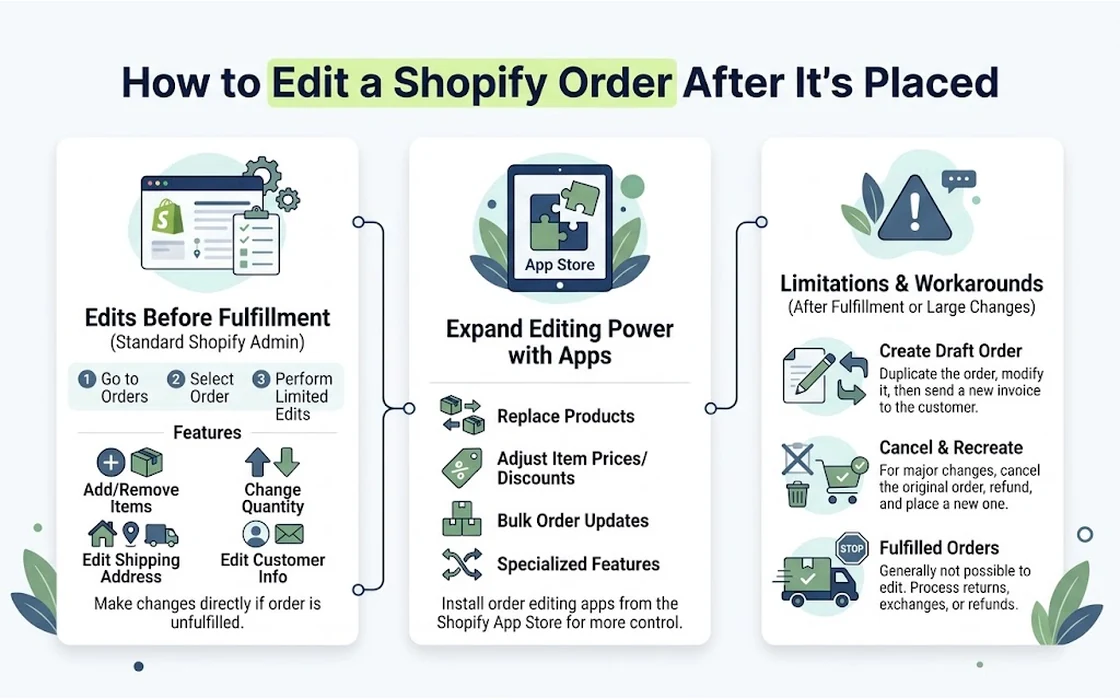
Shopify provides built-in functionality to edit unfulfilled or partially fulfilled orders directly from the admin interface. This feature preserves the original order ID, maintains customer purchase history, and adjusts inventory levels automatically.
How to Perform a Native Order Edit
To modify an order without generating a draft order:
- In your Shopify Admin, navigate to Orders and select the order you need to modify.
- At the top of the order details page, click the Edit button (or navigate to the line items section and select Edit).
- In the editing workspace, you can:
- Add Products: Search your catalog to add new items or replacement variants.
- Adjust Quantities: Increase or decrease item quantities using the numeric selector.
- Remove Items: Set an item’s quantity to zero to remove it from the order.
- Apply Discounts: Add a custom percentage or flat rupee discount to new or existing line items.
- Review the updated financial summary on the right side of the screen.
- Click Update order.
[Customer Request: Size Swap]
         │
         ▼
[Shopify Admin > Orders] ──> [Click "Edit"]
         │
         ├── Remove variant (Size M: Rs. 1,499)
         ├── Add variant    (Size L: Rs. 1,499)
         │
         ▼
[Net Difference: Rs. 0] ───> [Click "Update Order"]
         │
         ▼
(Original Order ID Preserved | Inventory Synchronized | No Cancellation Email)
Managing Payment Differences
When editing an order natively, the total cost often changes:
- When the order value increases: If a customer adds a Rs. 500 product to an existing Rs. 1,500 order, the balance reflects an unpaid amount of Rs. 500. Shopify provides an option to send an invoice directly to the customer’s email containing a secure checkout link. The customer clicks the link to pay the difference via UPI, credit card, or net banking.
- When the order value decreases: If an item is removed, Shopify prompts you to issue a partial refund to the customer’s original payment method or leave the balance as an unrefunded amount.
Critical Limitations of Native Shopify Order Editing
While native editing works well for simple adjustments, store managers operating at scale frequently encounter structural limitations:
1. Shipping Address Editing Is Disconnected
The native “Edit” button applies strictly to line items, quantities, and item-level discounts. If a customer needs to fix a misspelled apartment number, street name, or postal pincode, you cannot do so within the line item editing screen. Instead, you must cancel out of the line editor, return to the main order screen, locate the Customer card, and click the pencil icon next to Shipping address.
2. Inability to Edit Fulfilled Orders
Once an order (or a specific line item) is marked as Fulfilled, Shopify locks that item. You cannot swap variants, adjust quantities, or alter values on items that have an assigned tracking number. If a parcel has not yet left the warehouse floor despite an AWB being generated, native editing is entirely unavailable.
3. Inflexible Shipping Rate Adjustments
Native order editing does not allow you to change the customer’s selected shipping tier. If a customer with standard surface shipping calls to request expedited air express delivery (offering to pay an extra Rs. 150), you cannot modify the shipping line item natively.
4. Payment Link Drop-Off on Prepaid Orders
When an edit results in an outstanding balance on a prepaid order, relying on an emailed payment link introduces major drop-off risks. If the customer does not check their inbox or fails to complete the payment within an hour, the order remains in an unpaid, unfulfilled state. The fulfillment team is left in limbo: hold the order and delay delivery, or ship the original items and forfeit the upsell.
5. Incompatibility with Cash on Delivery (COD) Adjustments
In markets where cash on delivery accounts for a substantial share of transactions—such as e-commerce in India—native payment difference handling falls short. When a COD customer adds a Rs. 300 item to an order originally valued at Rs. 1,200, Shopify’s native flow prompts you to send an online checkout link. In reality, the customer expects to pay the revised total of Rs. 1,500 in cash upon delivery. Native editing does not automatically update the collectable cash amount on third-party shipping manifests.
Order Modification Methods Compared
The following table highlights the operational trade-offs between duplicating to draft orders, using native Shopify admin editing, and leveraging dedicated order editing applications.
| Operational Factor | Draft Order Duplication | Native Shopify Admin Edit | Dedicated Order Editing App |
|---|---|---|---|
| Order ID Retention | ❌ Generates new ID; cancels original | ✅ Retains original order ID | ✅ Retains original order ID |
| Analytics & GMV Reporting | ❌ Distorts order volume and revenue | ✅ Keeps single-source reporting clean | ✅ Keeps single-source reporting clean |
| GST Invoice Integrity | ❌ Requires credit notes and new series | ✅ Retains existing invoice sequence | ✅ Updates invoice line items cleanly |
| 3PL / AWB Synchronization | ❌ High risk of duplicate parcel dispatch | ⚠️ Webhook may require manual refresh | ✅ Automatically updates 3PL payloads |
| Address & Item Editing | ✅ Full flexibility in draft state | ⚠️ Managed in separate admin cards | ✅ Unified interface for items and address |
| COD Balance Management | ⚠️ Requires manual courier re-entry | ❌ Assumes online invoice payment | ✅ Updates courier cash collectable |
| Customer Self-Service | ❌ Merchant/agent intervention only | ❌ Merchant/agent intervention only | ✅ Customer self-service portal option |
Handling Payment Adjustments in the Indian D2C Context
Managing the financial delta of an edited order requires distinct protocols depending on whether the order was prepaid or placed via Cash on Delivery.
Scenario A: Additional Amounts on Prepaid Orders
If an edit raises the order total (for example, upgrading from a 500g coffee bag at Rs. 599 to a 1kg bag at Rs. 999):
- Complete the variant swap within the order editing interface.
- An outstanding balance of Rs. 400 is generated.
- Instead of waiting indefinitely for an email response, send the payment link directly through transactional messaging channels.
- Establish an internal cutoff: if the payment link is not cleared within 2 to 4 hours, revert the edit to the original variant to prevent warehouse dispatch delays.
Scenario B: Partial Refunds on Prepaid Orders
When a customer removes an item or downgrades a variant, an overpayment occurs:
- Process the partial refund directly through Shopify Payments, Razorpay, Cashfree, or your integrated gateway.
- Clearly inform the customer that the refund will credit back to their source payment method (UPI, debit card, or net banking) within 5 to 7 working days, depending on bank clearing cycles.
- Keep the refund note documented within the order timeline for audit transparency.
Scenario C: Adjusting Cash on Delivery (COD) Values
COD orders require physical cash reconciliation by the delivery executive. When modifying an unfulfilled COD order:
- Adjust the line items or add custom charges directly to the order.
- Ensure the order management setup dynamically recalculates the total collectable cash amount.
- Verify that your logistics partner’s integration receives the updated cash value. If your integration lacks real-time balance syncing, you must manually log into your logistics dashboard (such as Shiprocket or Delhivery) and edit the collectable COD amount before the order is manifested.
Automating Post-Purchase Edits and Customer Self-Service
Handling order modifications manually through customer support tickets is expensive and slow. If an order edit request sits in a support inbox for four hours, the warehouse may pack and ship the incorrect item before an agent reads the message.
Merchants can mitigate this by combining operational delay buffers with purpose-built automation tools.
1. Implement a Fulfillment Delay Window
Configure your store to place new orders on a temporary 15 to 30-minute fulfillment hold before pushing them to the warehouse picklist. During this window, customers are most likely to spot address errors or realize they selected the wrong size.
Using rules-based tools like Order Validation & Automation - automatic order screening for Shopify, merchants can automatically screen orders, verify high-risk COD requests via OTP, and hold shipments systematically while allowing customers a brief window to confirm or adjust their details.
[Order Placed] ──> [15-30 Min Automated Hold Window] ──> [Transferred to WMS / 3PL]
                            │
              Customer edits address or items
                            │
                            ▼
              [Payload Updated in Real Time]
2. Streamline Admin Edits with Purpose-Built Tools
When customer support agents need to process complex order changes quickly, relying on native multi-screen workflows introduces friction. A specialized order-editing tool that lets staff modify line items, update shipping addresses, alter pricing, and duplicate orders without breaking order histories, inventory counts, or financial reconciliation removes most of that friction - look for one that keeps a clear audit trail of every manual change.
3. Provide Immediate Communication Channels
The vast majority of Indian shoppers prefer instant messaging over email for post-order inquiries. Integrating an on-site contact channel like NV WhatsApp Chat - WhatsApp chat button for Shopify gives customers a direct line to request quick modifications before an order enters the dispatch cycle. When support teams can address change requests within minutes on messaging channels, RTO rates drop substantially.
Operational Best Practices for Post-Order Modifications
To maintain order accuracy and protect margins, establish standardized operating procedures (SOPs) for handling post-purchase changes:
1. Set a Strict Cutoff Policy
Explicitly publish your modification policy in your FAQ and order confirmation messages. State clearly that orders can only be modified while in an Unfulfilled state, or within a specific timeframe (such as 30 minutes post-purchase). Once an Air Waybill is generated and the order moves to packing, changes cannot be accommodated.
2. Double-Check Inventory Reservation
When swapping variants manually, ensure the replacement SKU has available stock. Shopify’s native editor will alert you if an item is out of stock, but if your store allows backorders or negative inventory, you might accidentally confirm a swap for an item that cannot be fulfilled, leading to unexpected delivery delays.
3. Maintain an Audit Trail in Order Notes
Whenever an agent modifies an order on behalf of a customer, record an internal note on the order timeline:
“Changed SKU from DR-BLU-M to DR-BLU-L per customer request via WhatsApp ticket #4821. No price differential.”
This protects your team against payment disputes, incorrect item claims, or customer misunderstandings later in the fulfillment cycle.
4. Re-Verify Shipping Pincodes After Address Edits
If a customer provides an updated address, verify that the new delivery pincode matches the state and city. A mismatched pincode entered during a customer support edit can cause couriers to misroute the package across sorting hubs, adding days to transit times or triggering an immediate RTO.
FAQ
Can I edit a Shopify order after it has already been shipped?
No, you cannot edit line items or item quantities once an order is marked as fulfilled and assigned a tracking number. If a customer needs a different item after dispatch, you must process it as an exchange or return after delivery. For address corrections while in transit, you must contact your courier partner directly to request a package reroute, as Shopify cannot modify transit manifests.
What happens to inventory when I remove an item from an order?
When you reduce the quantity of an item or remove it completely through the native Shopify order editor, the inventory for that item is automatically restocked to your available inventory count. However, if you use third-party inventory management software or an external ERP, verify that the restock webhook triggers correctly in your external system to prevent inventory count mismatches.
Will editing a Shopify order charge the customer’s payment method automatically?
No, Shopify cannot automatically debit a customer’s credit card, UPI account, or digital wallet for additional amounts after the initial checkout is complete. You must send an updated invoice containing a secure payment link, which the customer must manually approve and pay. For Cash on Delivery orders, the balance must be collected in cash upon package delivery.
How does editing an order affect GST invoicing for Indian stores?
If you edit an order natively before generating a formal tax invoice, your invoicing software will simply generate the invoice based on the updated line items and total value. If an invoice has already been generated prior to the edit, you must ensure your invoicing integration issues an amended invoice or generates a credit note for any reduced value to comply with GST filing standards.
Related reading
- Order Validation & Automation - automatic order screening for Shopify
- NV WhatsApp Chat - WhatsApp chat button for Shopify
Conclusion
Relying on the draft order workaround to modify placed Shopify orders is an outdated habit that introduces unnecessary operational risk. From broken inventory counts and fragmented customer analytics to severe headaches with Indian GST reconciliation and 3PL courier syncs, cancelling orders to recreate them causes more problems than it solves.
By using Shopify’s native order editing capabilities for everyday variant swaps, establishing clear fulfillment hold windows, and leveraging specialized order management apps for complex adjustments, merchants can handle post-purchase change requests smoothly. Streamlining this workflow preserves your historical data, reduces support friction, and ensures packages leave your warehouse accurately the first time.