
Schedule a Shopify Collection Sale With Auto-Revert
Learn how to schedule a timed sale across an entire Shopify collection with automated start dates, strikethrough prices, and hassle-free auto-revert.

- NV Trends
- 13 min read
Scheduling a sale across an entire Shopify collection with an automated start date, end date, and price rollback is not supported natively in the Shopify core admin. While Shopify allows store owners to publish new products on a future schedule and set individual price changes per variant, there is no native mechanism to select a collection of 500 products, apply a 20% discount starting at midnight, and have the catalog automatically revert when the promotion ends.
For merchants preparing for high-intensity shopping events such as Diwali, the Great Republic Day sale, or weekend flash promotions, this architectural omission creates operational friction. Store owners are often forced to choose between manual midnight CSV imports or checkout-only automatic discounts. However, checkout discounts fail to display visual strikethrough pricing on collection grids, which directly dampens conversion rates during peak discovery phases.
The underlying challenge has been discussed extensively among store owners, notably in Shopify Community thread 388303, where merchants have documented the recurring operational headaches of timed promotions. Solving this gap requires understanding how Shopify treats product pricing fields versus discount codes, evaluating the operational risks of manual file updates, and deploying dedicated app-based schedulers that execute automated price adjustments and rollbacks safely via the Shopify API.
Key takeaways
- Native Shopify admin tools do not support scheduled, collection-wide price changes or automated price reverts; native scheduling is restricted to individual product visibility or single-variant edits.
- Automatic checkout discounts do not modify product
priceorcompare_at_pricefields, meaning collection catalog grids will not display visual strikethrough badges or calculated percentage discounts. - Relying on manual CSV imports for launch and reversion exposes stores to catalog downtime, cached price conflicts, and inventory overwrites during high-traffic festival sales.
- App-based schedulers resolve this bottleneck by modifying underlying variant prices via background API queues at a designated timestamp and restoring previous price snapshots automatically when the sale expires.
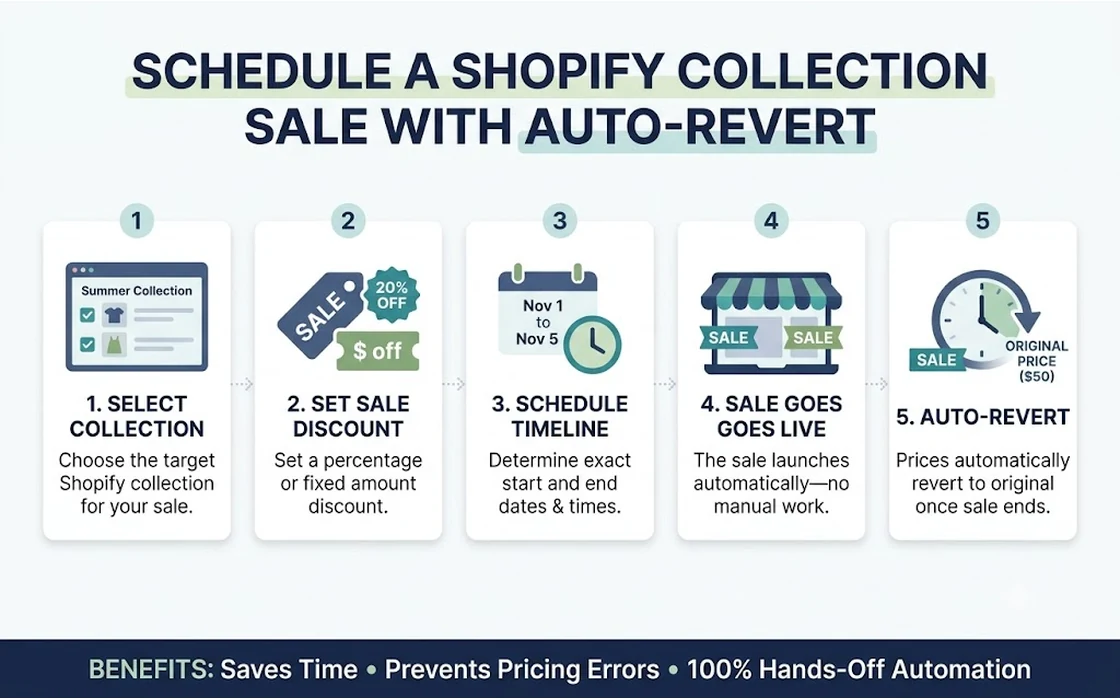
The Native Shopify Limitation: Why Collections Lack Timed Pricing
Shopify separates product catalog management from its promotional discounting engine. In the standard Shopify admin, pricing is stored as a direct attribute of each individual product variant (price and compare_at_price). Collections, by contrast, are grouping constructs—either manual lists or rule-based conditions (smart collections) built around product tags, types, or vendors.
Because collections are organizational layers rather than pricing layers, Shopify does not include a native operational trigger to manipulate the prices of all items belonging to a collection simultaneously. As documented in Shopify Community thread 388303, merchants have long sought a native “sale duration” setting where a promotional campaign could be assigned directly to an automated collection with predefined start and stop timestamps.
In core Shopify, if a merchant attempts to schedule pricing manually, they must navigate to each product individually or schedule publishing dates for entire products. Scheduling product publishing only controls visibility—it hides or reveals the entire product page. It cannot take an existing, active product priced at Rs. 2,499, lower it to Rs. 1,999 on Friday at 12:00 AM IST, and restore it to Rs. 2,499 on Sunday at 11:59 PM IST without active intervention.
The Strikethrough Dilemma: Catalog Price Changes vs. Automatic Discounts
When merchants realize that collection-wide scheduling is missing from the catalog editor, their first instinct is often to use native Shopify automatic discounts. According to Shopify Help Center documentation on discounts, merchants can create an automatic discount targeting a specific collection with a scheduled start and end date.
While this sounds like an ideal solution, it introduces a severe merchandising drawback: automatic discounts only apply at the cart and checkout stages.
Native Automatic Discount:
Collection Grid:   Rs. 2,999 (No visual indication of sale)
Cart / Checkout:   Rs. 2,399 (20% discount applied at checkout)

Catalog-Level Price Schedule:
Collection Grid:   Rs. 2,399  [Rs. 2,999] (Strikethrough badge: Save 20%)
Cart / Checkout:   Rs. 2,399 (Immediate, predictable pricing)
In the Indian ecommerce landscape, visual cues are critical for conversion. During major shopping festivals like Diwali or festive clearance events, shoppers scan collection pages looking for visual validation:
- A strikethrough across the original price (e.g.,
Rs. 2,999). - An eye-catching “Save 20%” or “Diwali Special” badge on the product thumbnail.
- A clear sale tag indicating immediate value before clicking through to the product detail page (PDP).
When using an automatic checkout discount, the collection grid continues to show Rs. 2,999. A casual visitor browsing a “Festive Kurtas Under Rs. 1,999” collection may bounce immediately, assuming the products are still at full price, because the discounted price is not revealed until they add the item to their cart and proceed toward checkout.
Furthermore, dynamic external marketing channels rely directly on catalog fields. Google Shopping feeds, Meta product catalogs, and price comparison engines crawl the product’s price and compare_at_price attributes. If those fields are not updated in the catalog, your advertising feeds will advertise full prices instead of promotional prices, degrading ad click-through rates (CTR) and return on ad spend (ROAS).
Comparing the 4 Methods to Run a Collection-Wide Sale
Merchants typically have four potential routes to execute collection-wide promotions. The table below outlines how each method performs across setup friction, storefront presentation, marketing integration, and revert reliability.
| Method | Collection Targeting | Displays Strikethrough on Grid? | External Ad Feeds Sync? | Auto-Revert at End Date? | Operational Risk Level |
|---|---|---|---|---|---|
| Shopify Automatic Discounts | Native collection selector | No (Checkout only) | No (Catalog retains full price) | Yes (Native start/end dates) | Low risk, but high drop-off on collection pages |
| Shopify Native Bulk Editor | Manual multi-product select | Yes (compare_at_price updated) | Yes | No (Must manually re-edit) | High (Manual errors, tedious over 50 items) |
| Manual CSV Export / Import | Filter by collection tag | Yes (compare_at_price updated) | Yes | No (Requires second upload at midnight) | Severe (Data corruption, inventory overwrites) |
| Dedicated Scheduler App | Dynamic smart collections & tags | Yes (compare_at_price updated) | Yes | Yes (Automated rollback via queue) | Minimal (Automated logging and margin rules) |
For merchants evaluating manual methods, our guide on Bulk Edit Prices on Shopify: Native, CSV & Apps details the mechanical steps and spreadsheet formulas required for standard catalog editing.
The Hidden Risks of Manual CSV Price Updates During Peak Sales
To achieve storefront strikethroughs without an app, many merchant teams resort to the “midnight spreadsheet hustle.” The process seems straightforward on paper:
- Export the product catalog to a CSV file.
- Filter rows by collection handles or tags.
- Copy the current
Variant Pricecolumn into theVariant Compare At Pricecolumn. - Apply an Excel formula to reduce
Variant Priceby the chosen discount percentage (e.g.,=A2*0.8). - Re-import the CSV file into Shopify at 11:59 PM before the sale starts.
- Repeat the process in reverse when the sale ends to restore base prices.
While functionally possible, this workflow introduces serious operational risks, especially during high-stress promotional periods.
1. The Mid-Sale Inventory Overwrite
A Shopify product CSV export contains pricing, descriptions, handles, and inventory quantities. If an export is pulled at 4:00 PM on Thursday, modified, and uploaded at 11:59 PM, any sales that occurred between 4:00 PM and midnight risk having their inventory levels overwritten if the merchant does not deselect inventory updates during import.
Even worse, when reverting the sale three days later, uploading the original pre-sale CSV file will restore stock counts that existed before hundreds of customers purchased products, causing severe stock discrepancies and overselling.
2. Overwriting Pre-Existing Clearance Discounts
A standard collection rarely consists purely of full-price merchandise. Some items might already be discounted from Rs. 3,499 down to Rs. 2,999.
When applying blanket formulas across a spreadsheet, merchants frequently overwrite the original compare_at_price. When the promotion ends and the rollback file is imported, those clearance products often lose their permanent markdown status or revert to improper prices, destroying margins or confusing shoppers.
3. API Throttling and Storefront Cache Delays
Importing a CSV containing thousands of variants triggers an asynchronous background job within Shopify. Depending on catalog size, processing can take anywhere from 15 minutes to over an hour.
During this processing window, products update sequentially. A customer browsing at 12:15 AM may see half the collection at promotional pricing and the other half at full price. Furthermore, Shopify’s content delivery network (CDN) caches collection pages; without an atomic update, collection grid caches may show conflicting information compared to individual product pages.
How Automated Schedulers Execute Collection Sales and Safe Rollbacks
Dedicated price scheduling applications bridge the gap between Shopify’s collection logic and variant-level pricing fields. Tools designed for this workflow, such as the NV Bulk Price & Tag Scheduler, operate by interfacing directly with the Shopify Admin API via structured background worker queues.
[Merchant Dashboard]
       │
       ▼
1. Define Rule: Select Collection (e.g., "Festive Kurtas")
2. Set Discount: 20% Off + Round to nearest Rs. 9
3. Set Schedule: Oct 20 00:00 IST -> Oct 24 23:59 IST
       │
       ▼
[Scheduler Database Snapshot]
Stores baseline: { variant_id: 101, original_price: 2499, original_compare: null }
       │
       ├──────────────────────────────────────────┐
       ▼ (Start Time)                             ▼ (End Time)
[API Worker: Launch Queue]                [API Worker: Rollback Queue]
Updates variant fields:                   Restores exact baseline:
- compare_at_price: Rs. 2,499             - compare_at_price: null
- price: Rs. 1,999                        - price: Rs. 2,499
Applies sale tag: "diwali-sale-2026"      Removes sale tag: "diwali-sale-2026"
The Rollback Snapshot Architecture
The key technical requirement of a reliable collection scheduler is state capture.
Before a single price is modified, the scheduling system queries the collection membership and records an immutable snapshot of every variant’s existing pricing structure. This includes:
- The current
price. - The current
compare_at_price(whether populated or null). - Associated product tags.
When the configured start date arrives, the application calculates new prices based on the merchant’s rule (percentage discount, fixed rupee amount off, or flat price point) and writes them to the Shopify API while respecting GraphQL bucket limits and REST leaky-bucket rate limits.
When the end date arrives, the app does not apply a mathematical reverse formula (which can introduce rounding errors like Rs. 1,999 reverting to Rs. 2,498.75). Instead, it reads the stored snapshot and re-applies the exact baseline pricing recorded prior to the campaign. Crucially, because the app targets only pricing attributes, inventory levels remain completely untouched, eliminating the risk of stock corruption.
Step-by-Step Blueprint for Scheduling a Collection Sale in India
Executing a smooth, automated collection sale requires coordinated setup across collection taxonomy, pricing rules, marketing badges, and post-sale verification. Follow this structured blueprint to prepare your store.
Step 1: Standardize Collection Architecture
Ensure the products you want to discount are cleanly grouped into either an automated collection or a dedicated manual collection.
- If discounting by category (e.g., “Men’s Footwear”), use an automated collection with condition rules (e.g.,
Product category equals FootwearANDTag equals Mens). - If creating a curated holiday flash sale (e.g., “Diwali Gifting Specials”), create a specific collection and assign items manually or via a unique campaign tag (
sale-diwali-active).
Step 2: Establish Price Rounding and Margin Protection
Psychological pricing plays a massive role in consumer confidence. In India, prices ending in 9, 49, or 99 perform significantly better than awkward decimals resulting from raw percentage calculations.
- A 15% discount on an item priced at Rs. 1,499 yields Rs. 1,274.15.
- Configure your scheduling rules with price rounding to normalize the final figure to Rs. 1,279 or Rs. 1,249.
- Establish a margin floor. Ensure the rule includes a minimum price threshold so heavily discounted items never drop below their cost of goods sold (COGS).
Step 3: Configure Marketing Feeds and Tagging
When scheduling the price change, configure the scheduler to simultaneously add a temporary product tag (such as badge-flash-sale) to all targeted products at the start time, and remove it at the end time.
- This allows your Shopify theme to display visual badges (“SALE”, “DIWALI SPECIAL”) on product cards using conditional Liquid logic:
{% if product.tags contains 'badge-flash-sale' %} <span class="badge sale-badge">Diwali Offer</span> {% endif %} - These tags also allow dynamic collection filtering, enabling navigation menus to feature a temporary “On Sale” filter during the event.
Step 4: Run a Staging Test on a Hidden Collection
Never run an untested scheduling rule directly on your primary catalog during peak hours.
- Create a private, unpublished collection containing 2–3 test products.
- Set up a test schedule configured to launch 10 minutes in the future and auto-revert 20 minutes later.
- Verify that the
compare_at_pricepopulates correctly, the theme renders the strikethrough styling as expected, and the rollback restores original prices down to the exact rupee without human intervention.
Step 5: Prepare Operational Safeguards
High-traffic sales events typically cause an influx of sudden orders, which can attract automated abuse or create operational bottlenecks. To protect your fulfillment pipeline while your collection sale runs, review automated order screening solutions like Order Validation & Automation to block suspicious or duplicate submissions before they reach your warehouse.
Crucial Best Practices and Edge Cases to Manage
Even with automated scheduling tools, several ecommerce edge cases require careful oversight to prevent margin erosion and customer frustration.
Handling Multi-Collection Overlaps
A single product can belong to multiple collections simultaneously (e.g., a leather wallet belonging to both “Accessories” and “Gifts Under Rs. 2,000”).
- The Conflict: If you schedule a 20% discount on “Accessories” and a 30% discount on “Gifts Under Rs. 2,000”, which rule takes precedence?
- Best Practice: Ensure your scheduling app features conflict detection or rule priority. As a rule of thumb, schedule sales by strict, non-overlapping product categories, or structure your rules so that products already possessing an active scheduled discount are excluded from subsequent campaign triggers.
Preserving Existing Clearance Items
If an item in your collection is already marked down (e.g., price: Rs. 1,500, compare_at_price: Rs. 2,000), a flat rule that takes the current price and moves it to compare_at_price will overwrite the original Rs. 2,000 baseline with Rs. 1,500.
- Configure your scheduling tool to preserve existing compare-at prices if they are already greater than zero.
- When the sale launches, the product price drops to Rs. 1,200, while the
compare_at_priceremains Rs. 2,000, displaying an even more compelling total discount to the consumer without losing original pricing history.
Timezone Synchronization (UTC vs. IST)
A frequent point of failure during midnight promotions is timezone misalignment.
- The Shopify Admin API operates in UTC by default, but your store admin displays time according to your configured store timezone (typically
Asia/Kolkata/ GMT+5:30 for Indian merchants). - Always verify that your scheduler app reads your local store timezone rather than server UTC. A launch scheduled for 12:00 AM UTC will trigger at 5:30 AM IST, missing five and a half hours of prime midnight shopping traffic.
FAQ
Can I schedule a collection sale in Shopify without installing an app?
Native Shopify does not support scheduling catalog price changes across a collection without an app. You can schedule an automatic discount at checkout or manually edit prices using a CSV file at the start and end of your sale, but neither native method combines automated collection-level scheduling with storefront strikethrough pricing.
Why don’t Shopify automatic discounts show strikethrough prices on collection pages?
Automatic discounts are calculated dynamically by Shopify’s checkout engine when items are added to the cart, rather than altering the core product catalog. Because the product’s underlying price and compare_at_price fields remain untouched in the database, collection grid templates cannot render strikethroughs or markdown percentages.
Will an app-based price schedule affect my inventory counts when it reverts?
No, reputable price scheduling applications only send API update payloads for variant pricing attributes (price and compare_at_price) and promotional tags. Unlike manual CSV imports—which risk overwriting inventory counts with pre-sale data—automated schedulers leave stock quantities completely untouched.
What happens if Shopify API rate limits are reached during a sale launch?
Shopify enforces API call limits (standard REST buckets or GraphQL cost calculations) on all connected applications. Professional scheduling apps manage this by staggering update calls across a managed queue shortly before the scheduled launch, ensuring high-volume catalogs transition smoothly without encountering throttling errors or failed updates.
Related reading
- NV WhatsApp Chat - WhatsApp chat button for Shopify
- Order Validation & Automation - automatic order screening for Shopify
- NV Bulk Price & Tag Scheduler - bulk pricing and scheduled sales for Shopify
Conclusion
Running a time-sensitive collection sale should not require waking up at midnight to upload spreadsheets, nor should it force merchants to compromise on storefront merchandising with checkout-only discounts. While core Shopify provides robust tools for individual product management, collection-wide promotional scheduling remains a critical operational gap.
By deploying an automated price and tag scheduler, store owners can launch scheduled campaigns with predictable precision. Your customers receive the visual clarity of strikethrough pricing and promotional badges across collection grids, external advertising feeds stay perfectly synchronized, and original prices revert automatically the moment the campaign concludes—protecting both your team’s sleep and your store’s bottom line.