
Bulk Edit Prices on Shopify: Native, CSV & Apps
Compare Shopify's native bulk editor, CSV import, and bulk pricing apps to update catalog prices quickly without errors or downtime.

- NV Trends
- 14 min read

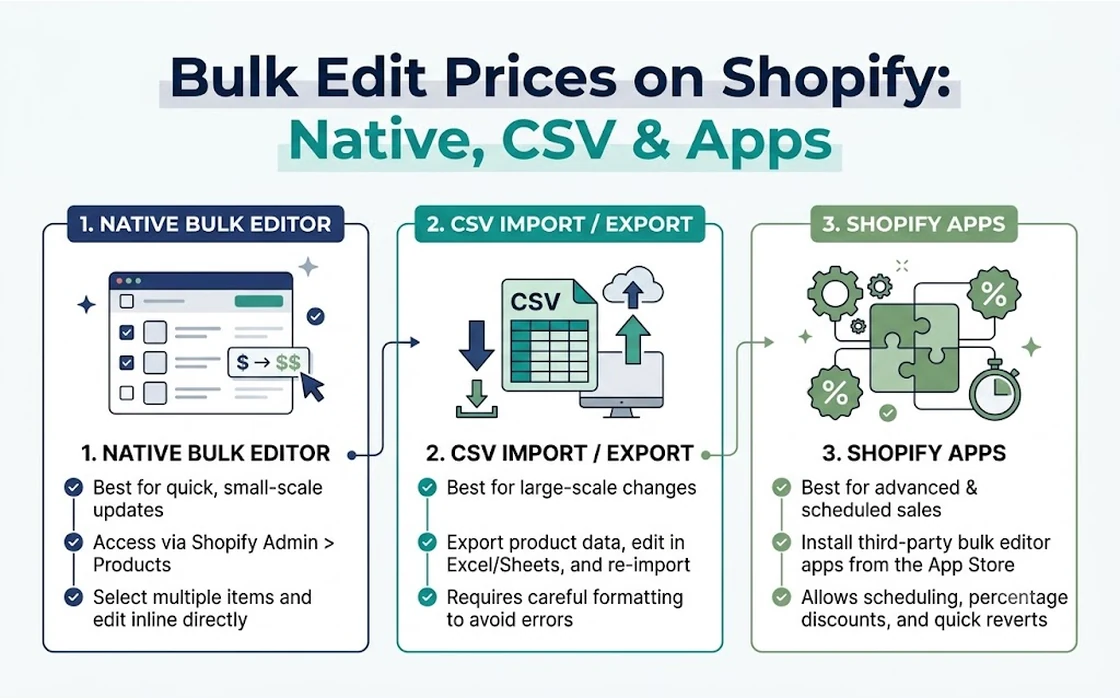
Updating prices across a Shopify store in bulk can be accomplished using three primary methods: the native Shopify Bulk Editor, a spreadsheet CSV import/export, or a dedicated bulk pricing application. Each approach caters to distinct operational scales, ranging from quick manual adjustments on small collections to automated, scheduled price changes across thousands of stock-keeping units (SKUs).
For Indian direct-to-consumer (D2C) brands and multi-channel retailers, maintaining accurate pricing is critical during high-velocity festive seasons like Diwali, end-of-season sales, and regular supplier cost revisions. Making manual adjustments product by product is unfeasible once a store scales past a handful of items. However, adopting the wrong bulk modification method introduces operational risks, such as overwriting critical variant identifiers, losing historical prices, or displaying incorrect discounts to shoppers.
Selecting the right tool requires evaluating catalog size, the mathematical complexity of the price adjustment, and the need for scheduling or rollback safeguards. By understanding the mechanical limits and failure points of each option, merchants can protect their profit margins and catalog data integrity while executing price changes efficiently.
Key takeaways
- The Native Bulk Editor works best for quick manual adjustments on fewer than 50 items but lacks formula support, batch calculation tools, and automated rollbacks.
- CSV Import/Export allows complex spreadsheet formulas across extensive catalogs, yet it carries severe data corruption risks related to handle mismatches, variant omissions, and barcode formatting errors.
- Dedicated Bulk Pricing Apps provide rule-based automation, percentage-based calculations, scheduled campaign launches, and one-click rollback capabilities for growing and enterprise stores.
- Creating an untouched catalog backup before executing bulk modifications remains an essential operational safeguard regardless of the chosen method.
1. The Native Shopify Bulk Editor: Best for Micro-Adjustments
Shopify includes an integrated spreadsheet-like interface within the admin panel known as the Bulk Editor. It allows store operators to view and edit multiple product attributes—such as price, compare-at price, cost per item, and SKU—in a tabular grid without opening individual product detail pages.
Shopify Admin > Products > Select Products > Bulk Edit > Adjust Fields > Save
To access this tool, an operator navigates to Products in the Shopify Admin, selects specific items using the checkboxes, and clicks the Bulk edit button in the floating action bar. By default, the interface displays standard product properties, but users can add or remove fields using the “Columns” dropdown at the top right.
Mechanical Limitations of the Native Editor
While convenient for minor operational tweaks, the native Bulk Editor possesses hard technical constraints that limit its utility for large-scale pricing changes:
- The 50-Product Pagination Barrier: The Shopify product admin defaults to displaying 50 products per page. While merchants can click “Select all 50+ products in your store” to open a broader selection in the bulk editor, rendering hundreds of variant rows inside a single browser session puts heavy demands on browser memory. On catalogs with multiple variant options (such as size, color, and material), a single product can expand into 20 or more distinct rows, causing the native interface to lag or freeze.
- Absence of Formula Support: The native editor operates strictly as a manual input grid. There is no built-in functionality to apply mathematical formulas such as “increase all prices by 10%” or “reduce prices by Rs. 200.” Every single cell must be typed manually or modified by clicking and dragging a single static value downward across adjacent rows.
- Vulnerability to Connection Interruptions: Changes made within the native Bulk Editor are saved in batches when clicking the “Save” button. If an internet disruption occurs or a browser tab crashes while submitting dozens of modified rows, changes can fail midway, leaving the catalog in an inconsistent state where some items reflect new prices while others retain old ones.
When to Use the Native Editor
The native editor is ideal for stores managing under 50 total SKUs, or when adjusting prices on a small, newly released collection. For example, if a merchant needs to manually adjust compare-at prices for 15 newly launched festive gift sets, the native Bulk Editor accomplishes this in minutes without touching external files or installing third-party software. For systematic adjustments based on percentages across wider inventories, consult our dedicated guide on how to increase Shopify prices by percentage.
2. CSV Export and Import: High Power with Substantial Data Risks
For merchants seeking to apply mathematical logic across hundreds or thousands of products without paid software, exporting catalog data to a Comma-Separated Values (CSV) file is a long-standing standard. This process involves exporting products from Shopify, opening the file in spreadsheet software such as Microsoft Excel, Google Sheets, or LibreOffice Calc, applying spreadsheet formulas, and importing the modified file back into Shopify.
Export CSV > Open in Spreadsheet > Apply Formulas > Save as UTF-8 CSV > Import with Overwrite
According to official documentation on the Shopify Help Center, a Shopify product CSV includes columns detailing product titles, handles, variant options, inventory policies, and pricing tiers. By applying standard spreadsheet formulas (such as =ROUND(F2*1.12, 0) to increase a base price by 12% and round to the nearest whole rupee), merchants can update thousands of records simultaneously.
+------------------+---------------+---------------+--------------------+
| Handle           | Variant SKU   | Variant Price | Variant Compare At |
+------------------+---------------+---------------+--------------------+
| silk-saree-red   | SSR-01-S      | 2499.00       | 2999.00            |
| silk-saree-red   | SSR-01-M      | 2499.00       | 2999.00            |
| cotton-kurta-blu | CKB-02-L      | 1299.00       | 1599.00            |
+------------------+---------------+---------------+--------------------+
Critical CSV Pitfalls and How They Occur
Despite its flexibility, CSV-based pricing updates represent one of the most common causes of catalog corruption in Shopify administration. A single spreadsheet formatting mistake can break inventory tracking, delete product images, or create duplicate listings.
1. Handle and Variant Desynchronization
Shopify identifies products using the Handle column (the unique URL slug of the product). If an operator accidentally edits, sorts, or filters handles out of alignment with their respective variant rows, Shopify cannot match the data correctly. If a variant row loses its association with the parent handle, Shopify may either reject the row or create an unintended, duplicate single-product listing.
2. Barcode and SKU Scientific Notation Errors
Spreadsheet applications like Microsoft Excel frequently identify long numeric strings—such as 12-digit UPCs or 13-digit EAN barcodes—as standard numbers. When opened, Excel automatically converts a barcode like 8901234567890 into scientific notation (8.90123E+12). If the file is saved and re-imported without correcting this column formatting, the scientific notation string permanently overwrites the real barcodes, breaking barcode scanner compatibility in retail point-of-sale (POS) systems and warehouse fulfillment centers.
3. Stripping of Leading Zeros
SKUs or postal codes starting with zeros (for example, 00452-BLK) are routinely altered by spreadsheet software that strips the leading zeros, converting the value to 452-BLK. This disrupts integration with third-party logistics (3PL) providers and enterprise resource planning (ERP) systems.
4. Accidental Deletion of Variant Options
When importing a product CSV, Shopify expects all active variant rows to be present. If a merchant filters a spreadsheet to display only “Large” sizes, changes their prices, and uploads that filtered CSV while checking the “Overwrite” option, Shopify may delete the unlisted sizes (“Small”, “Medium”, “XL”) from the store entirely because they were omitted from the update file.
5. Background Queue Latency During Peak Traffic
Large CSV imports are processed asynchronously in background worker queues. During high-traffic retail events, processing a file containing 10,000 variants can take anywhere from 20 minutes to over an hour. During this processing window, products update sequentially rather than instantaneously, leaving the storefront in an inconsistent pricing state where half the catalog reflects promotional pricing while the rest remains at full price.
Essential Safeguards for CSV Imports
To prevent catastrophic errors when using CSV updates:
- Always download a fresh, complete product export before starting any work and save it as an untouched master backup.
- Ensure the spreadsheet is saved using strict UTF-8 encoding to avoid corrupting special characters or currency symbols.
- When importing the file, verify that “Overwrite any current products that have the same handle” is checked; otherwise, Shopify will produce duplicate errors for existing SKUs.
- If an import goes wrong and corrupts catalog prices, act quickly to restore the master backup. For detailed recovery steps, read our guide on how to undo a bulk price change on Shopify.
3. Dedicated Bulk Pricing Apps: Automation, Scheduling, and Safety
As stores scale their catalogs past several hundred SKUs, manual spreadsheet management becomes an operational bottleneck. Dedicated bulk pricing applications integrate directly with the Shopify Admin API to modify prices programmatically, bypassing the human error inherent in file editing.
Select Target Collection/Tag > Define Rule (% or Fixed) > Set Schedule > Execute / Auto-Rollback
These tools allow merchants to construct dynamic pricing rules. For example, an operator can instruct an app to: “Apply a 15% discount to all products in the ‘Kurtas’ collection tagged ‘Summer-2026’ with inventory greater than zero, round the final price to end in Rs. 99, and update the compare-at price to match the previous selling price.”
Key Capabilities of Specialized Applications
Dedicated bulk pricing software solves the architectural weaknesses of native and CSV methods through several specialized capabilities:
- Rule-Based Targeting: Instead of scrolling through individual items or filtering spreadsheet rows, apps allow merchants to target inventory using metadata, including vendors, collections, product types, tags, and existing price thresholds.
- Automated Rollback Systems: One of the most significant risks in retail pricing is the inability to quickly revert an expired promotional campaign. Specialized tools store historical snapshots of previous prices, enabling merchants to restore original pricing with a single click once a sale concludes.
- Scheduled Sales Campaigns: Native Shopify features do not support scheduling sitewide bulk price changes to take effect at a specific future timestamp without manual intervention. Pricing apps allow merchants to schedule a sale to launch automatically at 12:00 AM Indian Standard Time (IST) and revert at 11:59 PM IST without requiring staff to be online.
- Psychological Price Rounding: Indian retail pricing frequently relies on psychological price points, such as ending prices in Rs. 49, Rs. 99, or Rs. 199. Dedicated applications include automated rounding rules that convert irregular calculated prices (such as Rs. 1,234.18) into clean retail figures (such as Rs. 1,249.00 or Rs. 1,299.00) automatically.
For store owners seeking scheduled sales execution and automated rollbacks without manual spreadsheet risks, the NV Bulk Price & Tag Scheduler - bulk pricing and scheduled sales for Shopify offers an integrated solution designed to automate promotional pricing workflows safely.
4. Comprehensive Comparison: Native Editor vs. CSV vs. Dedicated Apps
To determine which method suits a specific store’s workflow, operators should evaluate each approach across core operational criteria:
| Feature / Criterion | Native Shopify Bulk Editor | CSV Export & Import | Dedicated Bulk Pricing Apps |
|---|---|---|---|
| Catalog Scale Suitability | Small (1–50 products) | Medium to Large (50–10,000+ SKUs) | Any scale (10 to 50,000+ SKUs) |
| Formula & Math Support | None (manual entry only) | Full (via Excel / Google Sheets) | Built-in rules (%, flat amounts, margins) |
| Execution Speed | Fast for single items; slow overall | Moderate (requires export/edit/import) | Near-instant rule creation; automated API run |
| Risk of Catalog Corruption | Very Low (direct field editing) | High (barcode, variant, handle errors) | Extremely Low (API validation) |
| Automated Rollback | No (must be re-edited manually) | Manual (requires re-importing backup file) | Yes (one-click snapshot restoration) |
| Time-Based Scheduling | No (manual live edits only) | No (manual upload at event launch) | Yes (set start and end dates/times) |
| Psychological Rounding | Manual entry required | Complex spreadsheet formula required | Automated rule presets (.99, .49, nearest 10) |
| Direct Cost | Free (built into Shopify) | Free (built into Shopify) | Free tier to monthly subscription |
5. Step-by-Step Decision Framework
Selecting the right tool depends on three operational variables: the size of the catalog being modified, the complexity of the price formula, and whether the change is temporary or permanent.
Is the edit across more than 50 items?
├── NO  --> Do you need percentage formulas or scheduling?
│           ├── NO  --> Use Native Shopify Bulk Editor
│           └── YES --> Use Dedicated Pricing App
└── YES --> Is this a permanent cost change or a temporary sale?
            ├── Permanent Custom Reset --> Use CSV Import (with strict validation)
            └── Temporary Sale / Timed Event --> Use Dedicated Pricing App
Scenario A: Minor Price Tweaks on Select SKUs
- Use: Native Shopify Bulk Editor.
- Why: If a supplier increases the cost of 12 leather bags by Rs. 150, navigating to the bulk editor, selecting those 12 items, and typing the updated values directly into the “Price” column takes less than two minutes. Exporting a CSV or configuring an app rule introduces unnecessary administrative overhead for such a small batch.
Scenario B: Annual Cost Restructuring Across Complex Catalogs
- Use: CSV Export and Import.
- Why: When renegotiating procurement costs with multiple vendors, pricing updates rarely follow a single uniform formula. One vendor may raise costs by 4.5%, another by 8%, and certain discontinued lines may need liquidated pricing. Exporting a CSV allows finance teams to map individual vendor cost sheets against internal SKUs using
VLOOKUPorXLOOKUPfunctions in Excel before uploading the final prices back to Shopify.
Scenario C: Festive Flash Sales and Sitewide Promotions
- Use: Dedicated Bulk Pricing Apps.
- Why: Running a 72-hour festive sale across 2,000 apparel SKUs demands precise timing, compare-at price generation, and clean post-sale recovery. Attempting to upload a CSV at midnight and re-upload an old CSV three days later creates substantial risk of catalog errors during high-revenue trading windows. An app automates the launch and reversal seamlessly.
6. Best Practices to Prevent Costly Pricing Mistakes
Regardless of the method chosen, modifying store prices en masse impacts customer trust, financial margins, and downstream marketing channels. Adhering to standardized operational precautions protects your store from expensive errors.
1. Always Maintain an Unaltered Master Backup
Before executing any bulk change, generate a complete product export from your Shopify Admin. Store this file in a designated backup folder with the current date and timestamp (e.g., Shopify_Products_Backup_2026_10_07.csv). If a spreadsheet error corrupts product data or an automated rule produces unintended prices, this backup serves as your immediate recovery tool.
2. Run Isolated Staging Tests
Never apply a new formula or bulk modification across your entire catalog simultaneously without a preliminary test. Select a single, low-visibility test product or an inactive test collection:
- Apply your proposed price formula or app rule to that test group.
- Inspect the product on the live storefront to ensure both the selling price (
price) and original price (compare_at_price) display correctly. - Verify that currency formatting, rounding rules, and applicable GST calculations align with your store’s regional tax settings.
3. Account for Multi-Channel Feed Syncs
Shopify does not operate in isolation. Price updates synchronize downstream to connected channels, including Google Merchant Center, Meta Product Catalogs, and marketplace feeds like Amazon or Flipkart. Sudden, erratic price shifts or improperly mapped compare-at prices can trigger automated account suspensions or disapproval of product listings on Google Shopping due to price mismatch policies. Ensure that promotional price updates are scheduled with enough lead time for external advertising feeds to crawl and approve the changes.
FAQ
How do I change prices for all products at once in Shopify without an app?
To change prices across all products without an app, export your entire product catalog as a CSV file from the Shopify admin. Open the file in spreadsheet software like Microsoft Excel or Google Sheets, apply your pricing calculation formulas to the “Variant Price” column, save the file as a UTF-8 CSV, and import it back into Shopify with the “Overwrite existing products” option checked.
Why does Excel corrupt Shopify CSV files when bulk editing prices?
Excel often automatically converts long numeric values, such as 12- or 13-digit barcode numbers, into scientific notation (e.g., 8.90123E+12) and removes leading zeros from SKUs. When the spreadsheet is saved and re-imported into Shopify, these formatted strings overwrite your actual barcodes and SKU values, breaking inventory tracking and retail barcode scanners.
Can I schedule a bulk price change in Shopify natively?
Shopify does not natively support scheduling bulk price updates to launch and revert at specific times across standard product catalogs. While Shopify Plus merchants can schedule certain publishing changes via Launchpad, standard Shopify plans require either manual execution at the desired time or the installation of a dedicated bulk pricing app that supports automated scheduling.
What is the safest way to undo a bulk price update if something goes wrong?
The safest way to undo a bulk price update is to immediately import the unaltered master CSV backup file that was exported prior to making the changes, ensuring the “Overwrite” box is checked. If you used a dedicated bulk pricing application, use the app’s internal rollback feature to restore the pre-sale price snapshot with a single click.
Conclusion
Bulk price editing is a core operational requirement for any growing ecommerce merchant, yet there is no single method that fits every scenario. The native Shopify Bulk Editor remains the fastest choice for small, manual adjustments on fewer than 50 items. For extensive, customized supplier cost revisions that require complex spreadsheet logic, CSV export and import provides unmatched flexibility—provided strict safeguards are maintained to prevent data corruption.
For routine promotional campaigns, percentage-based discounts, and time-sensitive sales events, dedicated bulk pricing applications eliminate manual spreadsheet risks by providing automated scheduling and one-click rollbacks. By selecting the tool that matches your catalog scale and operational requirements, you can execute pricing updates smoothly while keeping your catalog data safe and accurate.
- Tags:
- Shopify
- Ecommerce
- Bulk Price Edit
- Shopify Store Management
- Shopify Csv Import
- Pricing Strategy