
Auto Add and Remove Sale Tags on Shopify: Flow vs Apps
Learn how to automatically add and remove sale tags on Shopify using native Flow or bulk apps to keep collections, badges, and discounts accurate.

- NV Trends
- 15 min read
Shopify merchants can automatically add a sale tag when a promotion launches and remove it when the event concludes either by configuring scheduled workflows in Shopify Flow or by running time-bound tag jobs through dedicated bulk scheduling applications. Both approaches eliminate the need for store operators to stay awake until midnight to edit catalog metadata manually, but they differ significantly in execution speed, catalog capacity, and revert reliability.
Product tags serve as the operational backbone for many modern Shopify storefronts. Beyond basic backend classification, tags power dynamic automated collections, activate frontend badges such as “Sale” or “20% Off,” drive product filtering in search navigation, and trigger cart promotion rules. During high-volume Indian shopping periods—such as Diwali flash sales, Great Indian Festival promotions, or weekend clearance pushes—failing to update or remove these tags on time leads directly to customer confusion, checkout friction, and unintended margin erosion.
Choosing between a native automation tool and a specialized bulk management app comes down to catalog scale and the complexity of your promotion. While native workflow automation handles simple, small-scale tagging tasks at zero additional software cost, large catalogs with hundreds or thousands of SKUs introduce query thresholds, rate limits, and rollback risks that require a dedicated state-tracking engine.
Key takeaways
- Shopify Flow is ideal for small, focused tag updates: Native scheduled triggers can query matching products and apply or strip tags without third-party app subscriptions, provided the product count remains within Flow’s query and iteration limits.
- Native workflows lack true state history: Flow does not take a pre-sale snapshot of your catalog; if you configure a workflow to remove a “sale” tag at midnight, it removes that tag from all matching items regardless of whether the tag was already present prior to the promotion.
- Dedicated scheduling apps provide guaranteed rollbacks: Specialized bulk apps track exact product IDs modified during the launch step, enabling precise restoration of pre-sale metadata even if errors occur mid-cycle.
- Sale tags should align with price adjustments: Tagging changes alone do not adjust pricing; syncing tags with
compare_at_priceupdates prevents “ghost sales” where badges appear on full-price items.
Why Product Tags Dictate the Success of Shopify Sales
On Shopify, tags are not merely administrative labels; they directly control storefront logic across themes and apps. When planning a time-limited event—such as a 48-hour weekend clearance offering apparel at Rs. 999 or footwear at Rs. 1,499—tags generally drive three core store functions:
- Automated Collections: Many merchants build promotional destinations using rules like
Product tag is equal to saleorProduct tag is equal to diwali-special. Products dynamically populate the collection page as soon as the tag is added and disappear once the tag is removed. - Frontend Badges and Visual Callouts: Online store themes often read product tags to inject visual ribbons (“ON SALE,” “LIMITED DEAL”) onto collection grids and product detail pages.
- Discount Combinations and App Rules: Third-party discount apps, loyalty systems, and search-and-filter menus rely on tag matching to determine which SKUs qualify for automated checkout deductions or facet filtering.
According to Shopify’s product tag documentation, products can carry up to 250 tags, and each tag is limited to 255 characters. However, managing these tags manually across dozens or hundreds of items is inherently risky. If an operator forgets to remove a sale tag after an event ends on Sunday night, customers may land on an empty collection page or see sale badges displayed next to full-price products.
Conversely, if a merchant attempts to apply tags manually via CSV exports during a live flash sale, any sync delay can cause broken collection links right as marketing campaigns go live. Automating tag application and removal is therefore essential for operational stability.
Method 1: Using Shopify Flow Scheduled Triggers (Native)
For stores on Shopify Basic, Shopify, Advanced, or Shopify Plus plans, Shopify Flow provides a native, code-free automation environment built directly into the admin. Using Flow’s Scheduled time trigger alongside product lookup actions, merchants can create a pair of workflows: one to apply tags at launch, and a second to remove them when the sale concludes.
+-----------------------------------------------------------+
|               Shopify Flow Native Workflow                |
|                                                           |
|  [Trigger: Scheduled Time] (e.g., Friday 00:00 IST)       |
|                       │                                   |
|                       ▼                                   |
|  [Action: Get Product Data] (Query: collection or status) |
|                       │                                   |
|                       ▼                                   |
|  [For Each Loop] (Up to 100 items per run)                |
|                       │                                   |
|                       ▼                                   |
|  [Action: Add Product Tags] (Add tag: "sale")             |
+-----------------------------------------------------------+
Setting Up the Start-of-Sale Workflow
To apply a tag automatically when the sale begins, configure a workflow structured as follows:
- Trigger: Select Scheduled time. Set the exact date, time, and time zone (for example, Friday at 00:00 Asia/Kolkata).
- Action: Add Get product data. Define a targeted search query using Shopify’s search syntax. For example, if you want to tag all active products inside a specific collection, you can query by
collection_id:123456789or filter by vendor, product type, or inventory level. - Loop: Add a For each loop linked to the list of products returned by the query step.
- Sub-Action: Inside the loop, select Add product tags, and input the target tag (such as
sale-activeorflash-sale). - Turn On: Save and activate the workflow ahead of the scheduled run time.
Setting Up the End-of-Sale Workflow
Removing the tag requires a separate, mirrored workflow configured to run at the conclusion of the promotional window:
- Trigger: Select Scheduled time, configured for the sale cut-off time (for example, Sunday at 23:59 Asia/Kolkata).
- Action: Add Get product data with a query targeting products that carry the tag, such as
tag:sale-active. - Loop: Iterate through the returned products using For each.
- Sub-Action: Select Remove product tags and enter the exact tag string
sale-active.
Where Shopify Flow Excels
Shopify Flow is well-suited for smaller catalogs and straightforward business rules:
- Zero Cost: Flow is included natively in Shopify plans, avoiding recurring app fees.
- Custom Logic: You can incorporate native conditions into the flow, such as only tagging items with inventory quantities greater than 5 units.
- No Third-Party Data Access: All automation runs within Shopify’s native infrastructure without granting catalog permissions to external apps.
Architectural Limitations of Shopify Flow for Flash Sales
While Shopify Flow handles basic automation tasks reliably, it was designed as a generalized business-process tool rather than a high-throughput catalog management engine. When applying Flow to large flash sales, merchants frequently encounter three architectural constraints.
1. Query Result Caps and Pagination Hurdles
Shopify Flow’s Get product data action is bound by GraphQL query limits. By default, native lookup queries return up to 100 items. While Shopify continues to refine pagination options within Flow, querying and looping over thousands of SKUs in a single scheduled event can result in truncated data sets or requires complex pagination chaining that is difficult to debug without developer assistance. If an Indian ethnic wear brand attempts to tag 4,500 festive products across multiple categories using a single scheduled trigger, Flow may process only the first segment, leaving the remaining items untagged.
2. Lack of Pre-Sale State Snapshots
Shopify Flow has no native memory of what an individual product looked like five minutes before a workflow fired. It cannot store a historical state table.
Consider this common operational scenario:
- Your store has 20 clearance items that permanently carry the tag
saleto populate a persistent clearance corner. - You launch a 48-hour festive promotion and use Flow to query all products in your “Apparel” collection, adding the tag
sale. - At the end of the promotion, your removal workflow queries all products with the tag
saleand removes it.
Because Flow cannot differentiate between items that held the tag before the sale and items tagged specifically for the 48-hour event, it strips the tag from your permanent clearance items as well. Restoring those 20 items requires manual auditing or restoring from offline backups.
3. Asynchronous Rate Limits and Execution Delays
Flow executes actions via internal background queues. Under normal operational loads, actions fire within seconds. However, during high-concurrency periods—such as regional festival weekends when thousands of Shopify stores trigger scheduled automations simultaneously—queue processing times can expand. Furthermore, if a workflow encounters a transient GraphQL API rate limit while updating a large batch of variants, individual tasks may fail without an automatic rollback mechanism. This leaves the catalog in a partially modified state where some items carry the tag while others do not.
Method 2: Scheduled Bulk Tag Jobs with a Dedicated App
To address catalog scale, snapshot preservation, and execution guarantees, merchants often turn to specialized catalog management tools. Solutions designed specifically for sale scheduling—such as the NV Bulk Price & Tag Scheduler—approach tagging as a reversible transactional job rather than an isolated set of fire-and-forget actions.
+-----------------------------------------------------------+
|             Dedicated Bulk Tag Scheduler Engine           |
|                                                           |
|  1. Configuration: Select Collection, Tags, & Schedule    |
|                       │                                   |
|                       ▼                                   |
|  2. Pre-Sale Snapshot: Capture Product IDs & Tag State    |
|                       │                                   |
|                       ▼                                   |
|  3. Execution: Batch API updates apply promotional tag    |
|                       │                                   |
|                       ▼                                   |
|  4. Live Sale Monitoring: Maintain historical state log   |
|                       │                                   |
|                       ▼                                   |
|  5. Exact Revert: Remove tag strictly from snapshot SKUs  |
+-----------------------------------------------------------+
How Dedicated Bulk Schedulers Work
Unlike general-purpose workflow builders, specialized bulk schedulers operate on a state-machine architecture:
- Target Selection: The merchant defines the scope using collection IDs, product vendors, or specific search filters.
- Pre-Run State Snapshot: Before writing any new data to Shopify’s APIs, the scheduler records the exact existing tags and metadata for every matched product ID.
- Throttled Batch Execution: The app interacts directly with Shopify’s Admin APIs using managed rate limiters, modifying hundreds or thousands of products systematically without exceeding Shopify’s API call thresholds.
- Guaranteed Reversion Job: When the designated end time arrives, the app does not run a generic search query. Instead, it reads its own recorded snapshot and removes the promotional tag exclusively from the products it modified during the initial run. Any products that had the tag prior to the sale retain it intact.
For merchants managing complex promotional calendars across multiple product categories, learning how to schedule a Shopify collection sale with auto-revert provides a detailed roadmap for organizing time-sensitive discounts without operational drift.
Shopify Flow vs. Dedicated Bulk Schedulers: Detailed Comparison
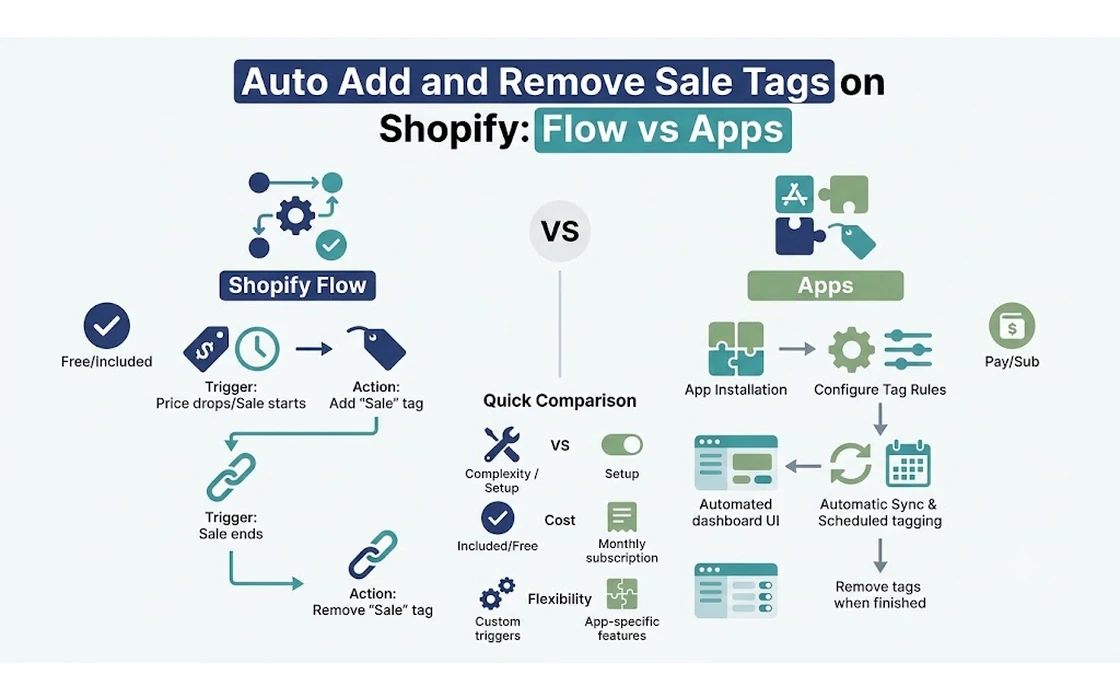
The decision to use Shopify Flow or a dedicated bulk scheduling app depends on catalog size, promotional frequency, and whether tags are updated alongside prices. The following table highlights the core functional differences:
| Feature / Dimension | Shopify Flow (Native) | Dedicated Bulk Scheduler Apps |
|---|---|---|
| Direct Cost | Free (included with active Shopify plans) | Monthly app subscription or pay-per-job pricing |
| Catalog Scale Limit | Best for < 100 items per trigger without complex loops | Scalable to 10,000+ SKUs using managed batching |
| Reversion Mechanism | Query-based (removes tag based on broad search rules) | Snapshot-based (reverts exact modified product IDs) |
| Pre-Sale State History | None (does not log pre-existing catalog metadata) | Full snapshot log stored before execution |
| Failure Recovery | Manual intervention required if tasks time out | Automated retries and failure reporting dashboards |
| Price Syncing | Requires separate complex variant-level actions | Updates tags, prices, and compare_at_price in one job |
| Setup Complexity | Moderate (requires configuring queries and loop nodes) | Low (form-based date pickers and collection selectors) |
| Best Suited For | Niche stores, micro-sales, simple tag-based alerts | High-SKU stores, multi-brand retailers, flash sales |
Aligning Sale Tags with Price Changes
A frequent mistake made by growing ecommerce operations is treating tags and product pricing as completely separate workflows. While tags power badges and collection visibility, they do not alter the monetary value charged at checkout unless paired with Shopify Scripts, automatic discount functions, or explicit price edits.
If a merchant tags 500 electronics items with flash-sale-50 to display a “50% Off” theme badge, but the product’s actual price remains at Rs. 2,999 without an updated compare_at_price of Rs. 5,999, shoppers will encounter inconsistent pricing at checkout. This discrepancy leads directly to abandoned carts and high customer support ticket volumes.
When running store-wide or collection-wide promotional events, tag automation must occur in lockstep with price updates. Merchants planning broad price revisions should review our comprehensive guide on how to bulk edit prices on Shopify across native tools, CSVs, and apps to avoid catalog mismatches where tags say “Sale” but the checkout reflects full retail price.
Practical Implementation: Step-by-Step Decision Guide
To determine whether your store should rely on native Shopify Flow or deploy a dedicated bulk scheduling app, follow this step-by-step decision framework based on catalog characteristics and promotional requirements.
                           [How many SKUs are in the sale?]
                                          │
                   ┌──────────────────────┴──────────────────────┐
                   ▼                                             ▼
            [Under 100 SKUs]                              [100+ SKUs]
                   │                                             │
      [Do products have pre-existing]                            │
      [sale tags that must be kept?]                             │
             │              │                                    │
            YES             NO                                   │
             │              │                                    │
             │              ▼                                    │
             │     [Use Shopify Flow]                            │
             │     (Native & zero cost)                          │
             │                                                   │
             └──────────────────────┬────────────────────────────┘
                                    ▼
                     [Use Dedicated Bulk Scheduler]
                     - Preserves pre-sale tag history
                     - Avoids query timeout limits
                     - Syncs tags with compare_at_price
Scenario A: Boutique Store with Under 100 SKUs (Use Flow)
If you manage a boutique apparel brand discounting 35 select styles for a 24-hour flash sale, Shopify Flow is entirely adequate:
- Create a dedicated manual collection titled “Flash Sale Weekend” and add the 35 products to it.
- In Shopify Flow, create a scheduled trigger set to Friday midnight.
- Configure Get product data with the query
collection_id:<your_collection_id>. - Loop through the items and add the tag
flash-deal. - Configure your theme to show a badge whenever
flash-dealis present. - Build a reciprocal Flow workflow to query
tag:flash-dealon Sunday night and remove it. - Test the workflow during off-peak hours on a draft product to confirm theme rendering.
Scenario B: Multi-Category Retailer with 2,000+ SKUs (Use a Dedicated App)
If your catalog spans multiple product lines—such as home decor, fashion, and accessories—with thousands of variants, relying on Flow introduces unnecessary operational risk:
- Use a dedicated scheduler that connects to Shopify’s bulk operations API.
- Select your target collections or apply multiple tag filters (e.g., all items under vendor “Handcrafted” with inventory > 0).
- Specify both the tagging action (
add tag: diwali-festive) and corresponding price modifications (e.g., setcompare_at_priceto current price and reducepriceby 20%). - Verify that the app generates a pre-sale snapshot log before confirming the schedule.
- Set the automated rollback trigger. Once the promotion concludes, the engine restores both original pricing and tag states without touching unrelated items.
4 Common Pitfalls When Automating Shopify Tags
Regardless of the tool you select, automated tag management can fail if basic Shopify catalog conventions are overlooked. Avoid these four common operational mistakes:
1. Case Sensitivity and Formatting Discrepancies
Shopify tags are case-insensitive in search indexing, but theme Liquid templates frequently treat them with strict case sensitivity. If your theme code checks:
{% if product.tags contains "Sale" %}
  <span class="badge badge--sale">SALE</span>
{% endif %}
And your automation workflow applies sale (lowercase), the badge will fail to display on the storefront. Standardize your naming conventions across all workflows and theme files before scheduling campaigns.
2. Storefront CDN Caching Delays
Shopify utilizes global Content Delivery Networks (CDNs) to cache collection pages and product details for optimal page-load speeds. When an automated workflow adds or removes tags across hundreds of products, theme cache invalidation is not always instantaneous. Customers in different regions may see cached versions of collection grids for several minutes after a workflow finishes executing. Avoid scheduling sales to start at the exact second a marketing blast is delivered; allow a 10-to-15-minute buffer between automation triggers and email/SMS sends.
3. Accidentally Modifying Archived or Draft Products
If your Flow query or app filter uses broad search strings like title:* without qualifying product status, the automation will update archived or draft items. When those products are eventually published, they will still carry the leftover promotional tags. Always append status:active to your search criteria in Shopify Flow.
4. Relying on Flow for High-Frequency Toggling
Some merchants attempt to create complex dynamic workflows that add and remove tags continuously based on real-time inventory adjustments (e.g., tagging an item as low-stock when inventory drops below 3, and untagging it when restocked). While feasible, high-frequency tagging on fast-selling items during flash sales can trigger API rate limits and clog your store’s Flow execution queue. Reserve scheduled tag workflows for macro promotional windows rather than minute-by-minute inventory status tracking.
FAQ
Does Shopify Flow cost extra to use for scheduling tags?
No, Shopify Flow is a free, native app provided by Shopify that is available to merchants on the Basic, Shopify, Advanced, and Shopify Plus plans. You can create scheduled triggers and tag workflows without any third-party subscription costs.
What happens if Shopify Flow fails to remove a sale tag when a sale ends?
If a Flow workflow fails—due to an API timeout, query error, or rate limit—the sale tags remain on your products indefinitely until manually cleared or until the workflow is manually re-run. Flow does not feature an automatic rollback mechanism to undo partially completed actions.
Can I schedule sale tags and price changes at the same time in Shopify Flow?
While it is technically possible to update variant prices within Shopify Flow, doing so requires iterating through individual variants within each product, calculating discount values, and adjusting both price and compare_at_price fields. Because Flow lacks historical rollback capabilities, managing both price edits and tags across large catalogs is significantly safer using dedicated bulk scheduling apps.
Will adding a “sale” tag automatically apply a discount at checkout?
No, product tags do not modify prices or apply discounts at checkout on their own. Tags simply classify products so that themes can display badges, collections can display filtered items, or automatic discount rules can recognize eligible products.
Conclusion
Automating the addition and removal of sale tags is one of the most effective ways to streamline Shopify store operations and maintain catalog integrity during busy promotional seasons. For small product selections and targeted micro-campaigns, Shopify Flow provides an accessible, cost-free native solution that eliminates manual midnight updates.
However, as catalog scale expands past 100 items, and as promotions demand coordinated price adjustments and guaranteed rollbacks, the architectural limitations of native workflows become apparent. By understanding the boundaries of native automation and deploying dedicated bulk schedulers when snapshot reliability is required, store owners can run high-impact flash sales with complete confidence that their storefronts will launch—and revert—exactly as intended.
- Tags:
- Shopify
- Shopify Flow
- Ecommerce Automation
- Product Tags
- Store Management
- Flash Sale