
Shopify Compare-at Price Not Showing Strikethrough: 7 Fixes
Resolve missing compare-at strikethrough prices on your Shopify store with step-by-step fixes for variant pricing, theme CSS, and cache glitches.

- NV Trends
- 15 min read
A Shopify compare-at price fails to display a strikethrough primarily because the compare-at value is entered lower than or equal to the active selling price, variant pricing is configured inconsistently, or theme-level Liquid and CSS rules suppress the markdown badge. According to published documentation on the Shopify Help Center, Shopify’s default storefront architecture requires the compare-at value to be strictly greater than the active retail price before the platform’s core pricing logic renders a crossed-out number or sale badge.
For direct-to-consumer (D2C) merchants in India, visual sale indicators directly influence conversion rates during high-intent sales windows like Diwali, Republic Day promotions, or seasonal clearance events. When a shopper browses a catalog expecting a discount—such as an item marked down from Rs. 2,999 to Rs. 1,799—the absence of a crossed-out original price removes crucial perceived value. Without that clear visual contrast, visitors frequently assume the product is being sold at full standard price, leading to elevated cart abandonment and lost revenue.
While setting up a compare-at price appears simple inside the Shopify admin, the visual presentation relies on a multi-layered chain: database values, Liquid template conditionals, multi-currency conversion rules, third-party script overrides, and browser caches. If any single link in this chain breaks, the strikethrough disappears silently without triggering an admin error. The troubleshooting steps below walk through all seven potential failure points and explain how to restore strikethrough prices across product and collection pages.
Key takeaways
- Shopify’s native pricing engine suppresses the compare-at strikethrough automatically if the compare-at value is equal to or less than the active retail price.
- In multi-variant products, inconsistent pricing across variants can hide sale badges on collection grid cards while still rendering them on individual product detail pages.
- Online Store 2.0 themes (such as Dawn, Sense, and Craft) use dedicated theme customizer blocks that merchants sometimes accidentally uncheck or hide.
- Custom CSS declarations (
text-decoration: noneordisplay: none) and external app scripts frequently overwrite standard theme pricing markup. - Multi-currency rounding rules inside Shopify Markets can normalize small differences between base prices and compare-at figures in international markets.
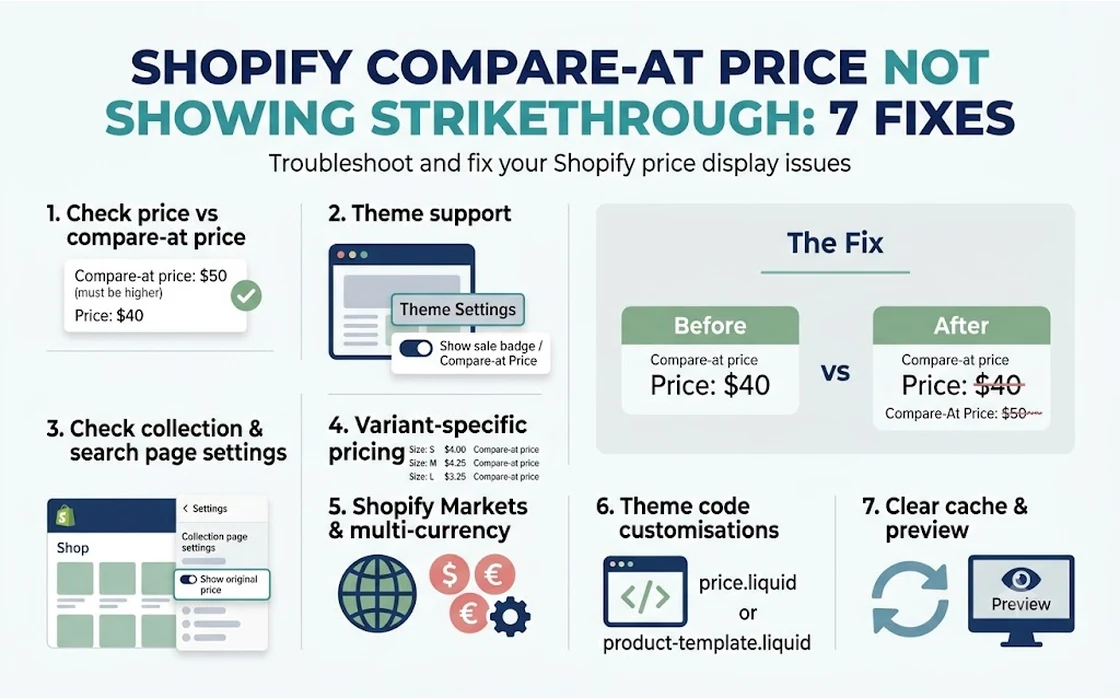
Quick Diagnostic: Why Compare-At Prices Disappear
Before inspecting code or uninstalling applications, use this troubleshooting matrix to pinpoint where your store’s price display is breaking:
| Observed Symptom | Primary Root Cause | Where to Check | Recommended Solution |
|---|---|---|---|
| Single price shows with no strikethrough anywhere | Compare-at price is $\le$ regular price | Shopify Admin $\rightarrow$ Products $\rightarrow$ Pricing | Ensure Compare-at is strictly higher than Price |
| Strikethrough shows on product page, but not collection card | Variant pricing mismatch or compare_at_price_varies logic | Product Variant settings | Standardize compare-at prices across all variants or update collection template logic |
| Compare-at number is visible, but lacks a horizontal line | CSS override (text-decoration: none) | Theme stylesheet (base.css or theme.css) | Add or restore text-decoration: line-through on the regular price element |
| Price was updated in admin, but storefront shows old price | Edge CDN or browser cache persistence | Storefront preview / Incognito window | Clear browser cache or wait 5–15 minutes for edge CDN cache invalidation |
| Strikethrough vanishes only in specific countries | Shopify Markets price rounding rules | Shopify Settings $\rightarrow$ Markets $\rightarrow$ Preferences | Adjust currency rounding rules or define fixed regional compare-at prices |
| Strikethrough briefly flashes on page load, then disappears | Third-party discount, currency, or bundle app script | Browser DevTools Console / Theme App Embeds | Deactivate conflicting app embed scripts and test rendering |
| Entire price block is missing from product layout | Theme block hidden or deleted in editor | Theme Customizer $\rightarrow$ Product Information | Add back the “Price” block under the product template |
1. Compare-at Price Equal to or Lower Than the Selling Price
The most common reason for a missing strikethrough is an inverted or identical price entry. In Shopify’s internal data model, every product or variant has two primary monetary fields: price (what the customer actually pays at checkout) and compare_at_price (the original baseline retail price).
Shopify’s default rendering engines evaluate this condition within the theme snippet (typically snippets/price.liquid):
{%- if compare_at_price > price %}
  {%- assign on_sale = true -%}
{%- endif -%}
If a merchant inputs Rs. 1,499 into the Price field and Rs. 1,499 into the Compare-at price field, on_sale evaluates to false. The theme logic interprets this as standard pricing with zero discount, suppressing the strikethrough element and any accompanying “Sale” badge.
Similarly, if an operator accidentally reverses the fields—setting the selling price to Rs. 2,499 and the compare-at price to Rs. 1,999—Shopify hides the compare-at figure altogether to prevent showing a “negative discount” that would confuse buyers.
How to Fix
- From the Shopify admin, open Products and click the affected item.
- In the Pricing card, inspect both values.
- Confirm that the Compare-at price is strictly higher than the Price (for example, Price: Rs. 1,499; Compare-at price: Rs. 2,499).
- Save the product and refresh the storefront.
When updating hundreds of products ahead of a clearance event, manual entry errors multiply quickly. To avoid entering invalid price pairs across broad inventories, consult our comprehensive guide on how to bulk edit prices on Shopify: native, CSV & apps.
2. Inconsistent Pricing Across Product Variants
Merchants frequently encounter a situation where the strikethrough appears on the main product detail page (PDP), but collection pages display only a single standard price or a generic “From Rs. 999” label without a crossed-out value.
This behavior stems from how Shopify evaluates variant collections. On collection and search pages, themes evaluate the entire product object rather than a selected variant. If a product has three variants (e.g., Small, Medium, Large):
- Small: Price = Rs. 999, Compare-at = Rs. 1,499 (Discounted)
- Medium: Price = Rs. 1,199, Compare-at = Rs. 1,199 (No discount)
- Large: Price = Rs. 1,399, Compare-at = empty (No discount)
Because the discount is not uniform across all child SKUs, the Liquid engine flags product.compare_at_price_varies as true. Depending on how your theme’s collection card snippet (card-product.liquid) is structured, the theme may deliberately suppress the strikethrough on catalog pages to prevent misleading shoppers who click through to an undiscounted variant.
Variant Configuration Breakdown:
Variant A (Small):  [Price: Rs. 999]  [Compare-at: Rs. 1,499] -> Strikethrough Active
Variant B (Medium): [Price: Rs. 1,199] [Compare-at: None]      -> Strikethrough Inactive
Result on Catalog Card: Theme suppresses strikethrough to prevent pricing ambiguity.
How to Fix
To establish consistent sale badges across your entire store, audit variant pricing:
- Open the product in your Shopify admin.
- Scroll to the Variants section.
- If managing only a few variants, click each variant row and verify that every variant features a proportional compare-at price.
- If managing dozens of variants, click Export at the top of the Products screen, edit the
Variant PriceandVariant Compare At Pricecolumns in your spreadsheet software, and re-import the CSV file ensuring you select “Overwrite products with matching handle”.
If your promotional strategy involves complex discount rules where only specific variants receive markdowns, evaluating Shopify compare-at vs discount codes will help you decide whether storefront compare-at prices or checkout-level automatic discounts suit your catalog better.
3. Theme Settings or Liquid Blocks Suppressing the Badge
In Shopify’s Online Store 2.0 framework, storefront templates are modular. Themes like Dawn, Refresh, Studio, and Crave construct product pages and collection cards using nested sections and blocks. If an administrator accidentally deletes, hides, or misconfigures the Price block inside the theme editor, the compare-at price will fail to render regardless of database settings.
Checking the Theme Customizer
- Go to Online Store $\rightarrow$ Themes.
- Click Customize next to your active theme.
- In the top template selector dropdown, select Products $\rightarrow$ Default product.
- In the left-hand sidebar navigation, expand the Product information section.
- Locate the Price block. If an eye icon with a slash appears next to it, click it to unhide the block.
- Click into the Price block settings. Ensure that any checkboxes labeled “Show sale price”, “Show compare-at price”, or “Show percentage off badge” are enabled.
Theme Customizer Tree:
├── Product Information (Section)
│   ├── Title
│   ├── Price (Block)  <-- Verify visibility and settings here
│   ├── Variant Picker
│   └── Buy Buttons
Inspecting the Theme Code Snippet
If the block is active in the customizer but the strikethrough remains absent, a code modification may have deleted the rendering markup.
- In the theme editor, click the three dots (…) next to your theme name and select Edit code.
- Under the Snippets directory, open
price.liquid. - Search for the HTML container handling the sale state (often
<div class="price__sale">). - Verify that the regular (original) price element includes the comparison tag:
<span class="price-item price-item--regular">
  {% if settings.currency_code_enabled %}
    {{ compare_at_price | money_with_currency }}
  {% else %}
    {{ compare_at_price | money }}
  {% endif %}
</span>
If this snippet block was removed during a custom theme modification, re-inserting the default price snippet from an unedited copy of your theme will restore functionality.
4. CSS Rules Overriding Strikethrough Display
Even when Shopify outputs the compare-at price into the page’s HTML Document Object Model (DOM), CSS styling rules can hide the text or strip away the line. Web browsers render strikethroughs using the CSS property text-decoration: line-through, as outlined in specifications documented by the Mozilla Developer Network (MDN).
Custom styles added to assets/base.css, app stylesheets, or conflicting theme modifications frequently introduce rules that override this behavior:
/* Erroneous CSS rule that strips the line */
.price__sale .price-item--regular {
  text-decoration: none !important;
}

/* Erroneous CSS rule that completely hides the compare-at price */
.price-item--regular {
  display: none !important;
}
How to Diagnose Using Browser Developer Tools
- Open the affected product page in Google Chrome, Mozilla Firefox, or Microsoft Edge.
- Right-click on the price display and select Inspect.
- In the Elements panel, review the HTML structure. Look for a
<span>containing the original price value. - If the number is present in the HTML but invisible on the page, check the Styles panel in the DevTools sidebar.
- Check whether
display: noneorvisibility: hiddenis applied. - If the number is visible but lacks a strikethrough, look for
text-decoration: none.
Developer Tools Inspection Hierarchy:
<div class="price price--on-sale">
  <div class="price__sale">
    <span class="price-item price-item--sale">Rs. 1,499.00</span>
    <s class="price-item price-item--regular">Rs. 2,499.00</s> <!-- Check CSS rules applied here -->
  </div>
</div>
How to Fix
To enforce the strikethrough styling across all product templates, navigate to your theme’s primary stylesheet (such as assets/base.css or assets/theme.css) and append an explicit declaration at the bottom of the file:
/* Force strikethrough rendering for compare-at price elements */
.price--on-sale .price-item--regular,
.price__sale .price-item--regular,
s.price-item--regular {
  display: inline-block !important;
  text-decoration: line-through !important;
  opacity: 0.7;
}
Save the file and reload the storefront to verify that the strikethrough renders.
5. Currency Conversion and Shopify Markets Rounding Rules
For merchants running international storefronts via Shopify Markets or selling in multiple currencies, automated price conversion rules can unexpectedly eliminate compare-at price differences.
When a store converts a domestic price (e.g., Indian Rupees) into a foreign currency (e.g., US Dollars, Euros, or British Pounds), Shopify automatically applies exchange rates alongside optional Price Rounding settings.
Consider this scenario:
- Domestic Price: Rs. 820
- Domestic Compare-at Price: Rs. 899
- Active Exchange Rate: 1 INR = 0.012 USD
- Unrounded Converted Price: $9.84
- Unrounded Converted Compare-at Price: $10.78
If your Shopify Markets configuration has automatic price rounding set to round to the nearest whole integer ($1.00) or 0.90 increments, both numbers might round to the exact same figure ($10.00). When the converted compare_at_price equals the converted price, Shopify’s currency formatting logic suppresses the compare-at price for shoppers in that specific geographic market.
How to Fix
- From the Shopify admin, go to Settings $\rightarrow$ Markets.
- Select the specific international market exhibiting the issue.
- Click Products and pricing.
- Check the Price rounding settings. If rounding increments are wide relative to your profit margins or discount gaps, adjust the rounding rules.
- Alternatively, scroll down to the product catalog within that market and enter fixed localized pricing for your promotional items rather than relying on automated percentage-based conversions.
6. Third-Party App Scripts Overriding DOM Price Nodes
E-commerce stores frequently deploy external apps for volume discounts, bundle pricing, product subscriptions, pre-orders, and dynamic currency switching. Many of these apps operate by using JavaScript to intercept page loads and manipulate the DOM.
When a page loads, the theme’s native Liquid engine prints the standard HTML containing both the selling price and the crossed-out compare-at price. Fractions of a second later, an external application script executes, queries the app vendor’s servers, and replaces the entire <div class="price"> node with an app-generated HTML container.
If the app’s code is poorly configured or fails to account for your theme’s specific CSS classes, it may replace the native price element with plain text containing only the final payable price, stripping the strikethrough completely.
DOM Lifecycle with Conflicting Script:
1. Liquid Server Render:  [Rs. 1,499] <del>Rs. 2,499</del>  (Strikethrough Present)
2. Browser Loads Page:    Native markup displays momentarily.
3. App JS Executes:       Script replaces .price container with unformatted payload.
4. Final User Display:    [Rs. 1,499]  (Strikethrough Vanished)
How to Isolate App Conflicts
- Open your product page in an incognito window with the browser console open (F12 $\rightarrow$ Console).
- Watch the price display as the page loads. If the strikethrough appears for a split-second and then disappears as the page finishes loading, an asynchronous JavaScript file is stripping the markup.
- To verify which app is responsible, go to Online Store $\rightarrow$ Themes $\rightarrow$ Customize.
- In the left toolbar, click App embeds.
- Temporarily disable app embeds associated with pricing, currency conversion, or discount badges one by one.
- Click Save and test the live page after toggling each embed.
Once you isolate the offending application, contact the developer’s support team or adjust the app settings to allow native theme pricing selectors (.price, .price__sale) to render unhindered.
7. Edge CDN and Browser Caching Delays
When merchants update hundreds of prices simultaneously ahead of a major campaign, they often open their live storefront immediately and see zero changes. The immediate reaction is to assume the compare-at feature is broken.
In reality, Shopify utilizes an extensive Content Delivery Network (CDN) powered by edge servers globally. Storefront pages, collection listings, and asset files are cached at edge nodes closest to the user to deliver rapid page load speeds.
When product updates are submitted via the Shopify admin or via API integrations, cache purging signals are dispatched to these edge nodes. Under normal operating conditions, this synchronization completes within seconds. However, during periods of peak platform traffic, cache propagation across distributed edge servers can take between 5 and 15 minutes. Furthermore, the merchant’s local web browser frequently caches static HTML responses.
How to Verify Cache State
- Hard Refresh: In Google Chrome or Firefox on Windows, press
Ctrl + F5orCtrl + Shift + R(on macOS, pressCmd + Shift + R) to bypass your local browser cache. - Incognito / Private Window: Open the product URL in a fresh private browsing session where no prior session assets are stored.
- URL Parameter Bypass: Append a random query parameter to the end of the product URL (e.g.,
https://yourstore.com/products/sample-item?nocache=1). This forces the CDN to fetch an uncached version directly from the primary origin server.
If you find that an automated batch price update produced incorrect values or unintended formatting across your catalog, you can quickly revert the changes using our step-by-step tutorial on how to undo a bulk price change on Shopify.
Best Practices for Managing Promotional Pricing at Scale
Troubleshooting a broken strikethrough during an active promotion costs both time and revenue. Implementing a disciplined operational workflow prevents visual display errors before campaigns go live:
- Maintain Consistent Price Floors: Never lower a compare-at price below the selling price during ad-hoc catalog adjustments. If an item is returning to full price, clear the compare-at field entirely rather than entering matching figures.
- Standardize CSV Import Templates: When preparing sale data in spreadsheet programs like Microsoft Excel or Google Sheets, ensure the
Variant Compare At Pricecolumn is formatted as a numeric currency value with no trailing symbols, spaces, or text characters that could corrupt Liquid parsing. - Audit Catalog Changes in an Unpublished Theme: Before launching seasonal sales, duplicate your live theme, test your promotional prices and visual badges inside the preview link, and verify that all CSS rules render correctly across desktop and mobile screens.
- Automate Scheduled Sales Operations: Manually updating thousands of product tags and pricing fields late at night introduces severe operational risk. Utilizing specialized automation such as the NV Bulk Price & Tag Scheduler - bulk pricing and scheduled sales for Shopify allows merchants to schedule compare-at adjustments, launch sales automatically at midnight, and revert prices instantly when the promotional window closes without manual intervention.
FAQ
Why does the strikethrough price appear on the product page but not on collection pages?
This discrepancy usually occurs because the product has multiple variants with differing prices or compare-at values. In standard Shopify themes, if variant prices vary or if only some variants have a compare-at price, the collection card logic suppresses the strikethrough or displays a “From [Price]” notice to avoid showing misleading discount data before a specific variant is selected.
Can I show a strikethrough price when using a Shopify discount code?
No, native Shopify discount codes (whether entered manually at checkout or triggered automatically) do not apply to the storefront catalog layer. They are computed exclusively during the checkout phase. To display a visible strikethrough price on product cards and collection pages, you must enter a value directly into the product’s native Compare-at price field in the Shopify admin.
Will setting a compare-at price affect my GST invoicing in India?
No. In India, Goods and Services Tax (GST) is calculated strictly on the actual transaction value—the final selling price paid by the customer—not the compare-at price. The compare-at price serves purely as a visual marketing reference point on the storefront and does not alter the tax amounts generated on tax invoices or order summaries.
How long does it take for compare-at price updates to appear on the storefront in 2026?
Under normal conditions, price adjustments made in the Shopify admin update on the storefront within 30 to 60 seconds. However, if your store is experiencing high traffic or if you processed a large bulk CSV import with thousands of SKUs, CDN edge cache invalidation can take up to 10–15 minutes to reflect globally.
Conclusion
A missing compare-at strikethrough on Shopify is rarely a platform-level system outage. In the vast majority of cases, the issue traces back to a simple mathematical conflict—where the compare-at price is equal to or less than the active retail price—or a theme-level rule suppressing the markdown styling.
When diagnosing the issue on your store, always follow a structured order of operations: first verify that individual variant values in the admin are mathematically correct, inspect the customizer settings to ensure the price block is visible, test for CSS text-decoration overrides in your browser developer tools, and audit third-party app embeds for conflicting scripts. Resolving these visual discrepancies ensures your store delivers clear price transparency, preserves customer trust, and captures the full conversion potential of your promotional campaigns.
- Tags:
- Shopify
- Shopify Pricing
- Ecommerce Troubleshooting
- Online Store
- Shopify Theme
- Product Pages